


- Posts: 3790
- Thank you received: 718
3 Post Moderation Rule for New Boarders (25 Jan 2021)
New boarders will have their posts moderated - Don't worry if you cannot see your post immediately.
Converting Logos into shiny 3D / A Cooking Recipe in 6 easy steps
- Karsten Schlüter
-
 Topic Author
- Offline
- Moderator
-

Less
More
10 May 2016 12:56 - 11 May 2016 08:05 #76533
by Karsten Schlüter
foreword:
this is a step-by-step advice, missing tons of background infos, our experts like fox_m can much better explain …. don’t ask me questions, I have no clue! That’s the way I’m doing it…
ADDENDUM:
Fox had added the 'pro' version of this task here:
discussions.apple.com/docs/DOC-9991?et=watches.email.document
THANK YOU for sharing your incredible indepth knowledge!!
Step #1 flip logo
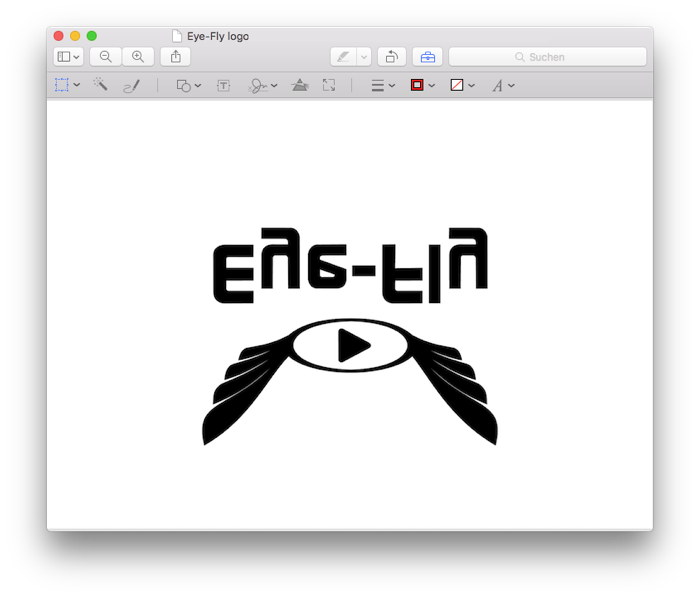
Open your logo in Preview (or any paint.app) and mirror it vertically.
Step #2 convert it to svg
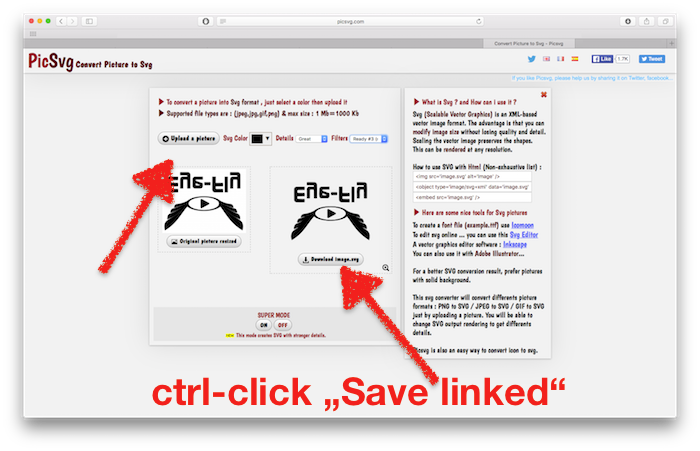
goto picsvg.com (there are several others)
upload pic, set color to black, details: great, filters Ready #3
keep in mind:
to ‚paint’ vectors around pixels is a tricky process. Don’t try to vectorize HiDef photos or such. Best results are b/w png with some higher resolution (many limited to 3500pix wide).
Download image.svg
In Finder, you can check results by selecting the file and hit spacebar - I noticed on some conversions, curves got edgy…try a diff. conversion service….
Step #3 make a font
goto glyphter.com
drag .svg onto any letter
(make your life easier, here: e for eye-fly…)
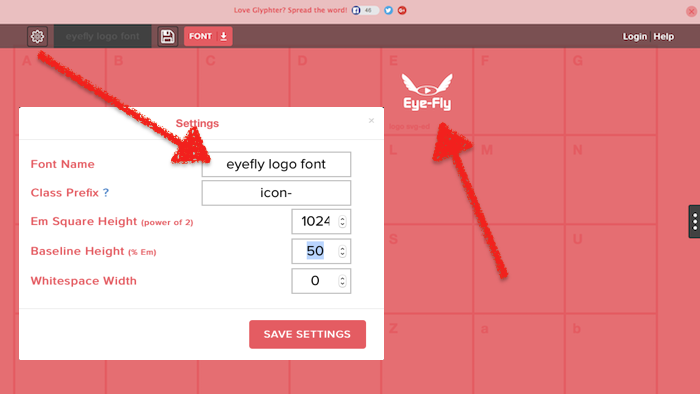
click the gear icon
give a useful, unique font-name
click Font, download font
Step #4 install custom font
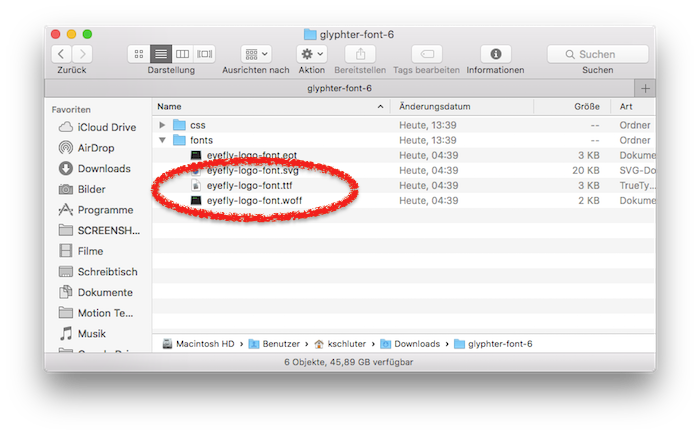
double click downloaded glyphter.zip, double click .ttf file
Font Book.app will open, probably noticing a minor error
click install
Your System now has a new font, containing one ‚letter‘ = logo
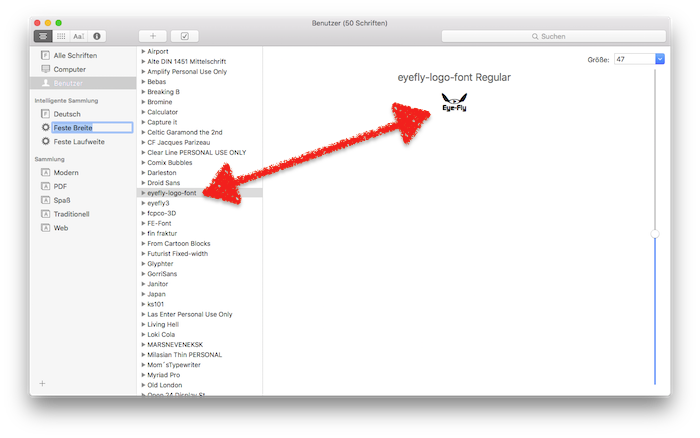
Step #5 make it shine
in Motion 5, create new project; add camera; select 3D Text; type your logo-letter (here E); in the Inspector select your custom font - tadaaah!
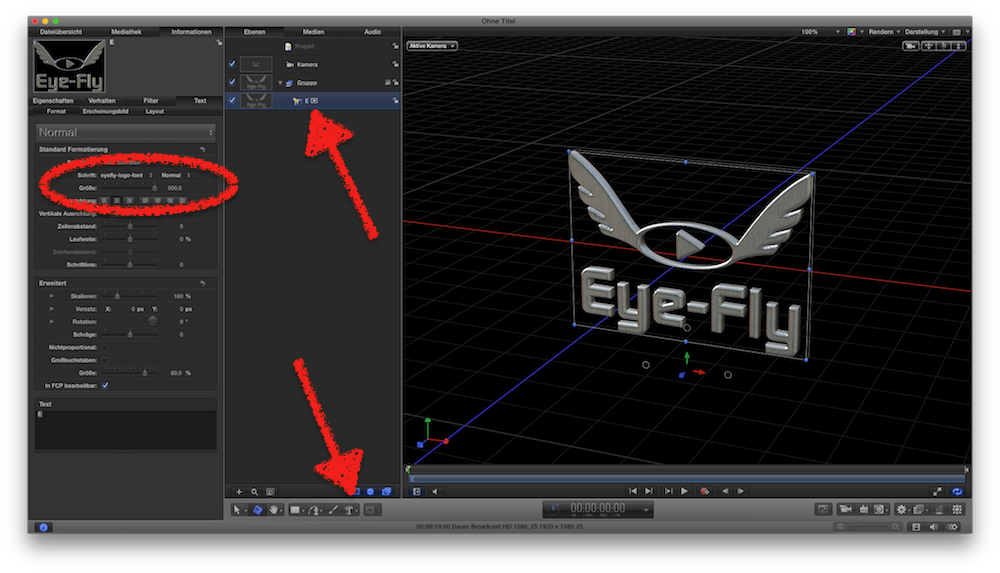
Apply materials, colors, ambience, lights, animations.
… same in FCPX:
apply a title, type your letter, select your custom-font; apply 3D, material, colors, animate…..
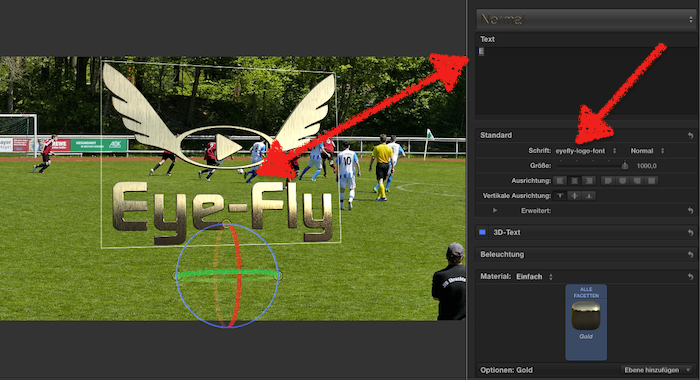
… this is the basics. There are several other service and options. For nice animations, consider to split the logo in parts before vectorizing (svg) it. A lot of bling is done by choosing materials & lights… due to fonts are vectors, you can really zoom in deeply, or do those StarWars-ish 'flying over audiences head' animations, and finally, in M5, you can do use the many 'virtual canera' effects …

this is a step-by-step advice, missing tons of background infos, our experts like fox_m can much better explain …. don’t ask me questions, I have no clue! That’s the way I’m doing it…
ADDENDUM:
Fox had added the 'pro' version of this task here:
discussions.apple.com/docs/DOC-9991?et=watches.email.document
THANK YOU for sharing your incredible indepth knowledge!!
Step #1 flip logo
Open your logo in Preview (or any paint.app) and mirror it vertically.
Step #2 convert it to svg
goto picsvg.com (there are several others)
upload pic, set color to black, details: great, filters Ready #3
keep in mind:
to ‚paint’ vectors around pixels is a tricky process. Don’t try to vectorize HiDef photos or such. Best results are b/w png with some higher resolution (many limited to 3500pix wide).
Download image.svg
In Finder, you can check results by selecting the file and hit spacebar - I noticed on some conversions, curves got edgy…try a diff. conversion service….
Step #3 make a font
goto glyphter.com
drag .svg onto any letter
(make your life easier, here: e for eye-fly…)
click the gear icon
give a useful, unique font-name
click Font, download font
Step #4 install custom font
double click downloaded glyphter.zip, double click .ttf file
Font Book.app will open, probably noticing a minor error
click install
Your System now has a new font, containing one ‚letter‘ = logo
Step #5 make it shine
in Motion 5, create new project; add camera; select 3D Text; type your logo-letter (here E); in the Inspector select your custom font - tadaaah!
Apply materials, colors, ambience, lights, animations.
… same in FCPX:
apply a title, type your letter, select your custom-font; apply 3D, material, colors, animate…..
… this is the basics. There are several other service and options. For nice animations, consider to split the logo in parts before vectorizing (svg) it. A lot of bling is done by choosing materials & lights… due to fonts are vectors, you can really zoom in deeply, or do those StarWars-ish 'flying over audiences head' animations, and finally, in M5, you can do use the many 'virtual canera' effects …
Last edit: 11 May 2016 08:05 by Karsten Schlüter.
Please Log in to join the conversation.


05 Sep 2016 17:45 #79635
by Schnurr
Replied by Schnurr on topic Converting Logos into shiny 3D / A Cooking Recipe in 6 easy steps
Hi Karsten,
thanks for sharing that. I wonder whether the colors will be maintained or everything will be converted into black
Quote: "set color to black"
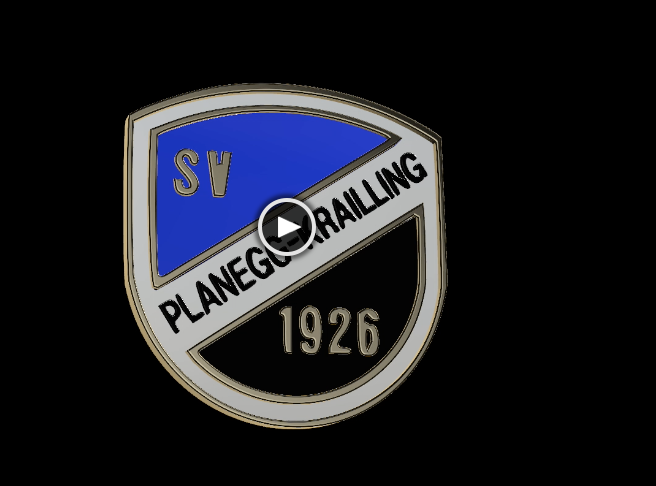
Via PN you shared your SV Planneg-Krailing soccer club logo (black&white colored) as such could you take over the original colors or adjusted that later one which would work for some easy soccer club logos but not for all ;-(
Regards
Tobias
PS: had to raise that here in order to achieve the 3 posts for newbies
thanks for sharing that. I wonder whether the colors will be maintained or everything will be converted into black
Quote: "set color to black"
Via PN you shared your SV Planneg-Krailing soccer club logo (black&white colored) as such could you take over the original colors or adjusted that later one which would work for some easy soccer club logos but not for all ;-(
Regards
Tobias
PS: had to raise that here in order to achieve the 3 posts for newbies
Please Log in to join the conversation.
- Karsten Schlüter
-
Topic Author
- Offline
- Moderator
-
Less
More
- Posts: 3790
- Thank you received: 718
06 Sep 2016 10:04 #79641
by Karsten Schlüter
excellent question, should have mention that in my recipe:
Fonts don't have a color.
When you're thru this process, converting a graphic into a 'letter'/glyph, you have to apply its color (and material) in Motion.
For my examples, I'm using Pixelmator to seperate each color into its own layer. Each layer then gets converted into plain black. Later, in Motion, I 'stack' each glyph over each other and apply colors and materials.-
.. indeed, it gets tricky, when logos contain gradients or textures....
Keep in mind:
we abuse here a '3D text' function to create 3D objects...
If you're a master in that, you can create stuff like
www.fcp.co/forum/6-motion-5/25853-real-3...cult-of-coffee#79380
…
Replied by Karsten Schlüter on topic Converting Logos into shiny 3D / A Cooking Recipe in 6 easy steps
Schnurr wrote: … wonder whether the colors will be maintained or everything will be converted into black…
excellent question, should have mention that in my recipe:
Fonts don't have a color.
When you're thru this process, converting a graphic into a 'letter'/glyph, you have to apply its color (and material) in Motion.
For my examples, I'm using Pixelmator to seperate each color into its own layer. Each layer then gets converted into plain black. Later, in Motion, I 'stack' each glyph over each other and apply colors and materials.-
.. indeed, it gets tricky, when logos contain gradients or textures....
Keep in mind:
we abuse here a '3D text' function to create 3D objects...
If you're a master in that, you can create stuff like
www.fcp.co/forum/6-motion-5/25853-real-3...cult-of-coffee#79380
…
Please Log in to join the conversation.
