


3 Post Moderation Rule for New Boarders (25 Jan 2021)
New boarders will have their posts moderated - Don't worry if you cannot see your post immediately.
Creating A Flame Wipe Transition In Motion 5

11 Apr 2013 17:03 - 20 Apr 2013 20:22 #24217
by BenB
Creating A Flame Wipe Transition In Motion 5 was created by BenB
This tutorial explains how to create a custom wipe transition using a video clip and animated mask shapes. Specifically using a flaming video to burn a wipe transition from one clip to the next. Both supplied and manually created animated mask shapes are explained, as well as the details of Motion's shape mask controls.
www.artbeats.com/video_tutorials/50
www.artbeats.com/video_tutorials/50
Last edit: 20 Apr 2013 20:22 by peteramwiggins.
Please Log in to join the conversation.

11 Apr 2013 22:30 #24235
by Seanus
Sean Lander - Editing since 1982 - AVID 1991 - FCP 1999 - FCPX 2011
Replied by Seanus on topic Creating A Flame Wipe Transition In Motion 5
Fantastic tutorial. One question. I noticed the flames seemed to cut out abruptly. Was that because the behaviour wasn't working properly? How would you overcome this?
Sean Lander - Editing since 1982 - AVID 1991 - FCP 1999 - FCPX 2011
Please Log in to join the conversation.
- jdm4given1
-

- Offline
- Premium Member
-

Less
More
- Posts: 121
- Thank you received: 20
12 Apr 2013 13:31 #24266
by jdm4given1
Replied by jdm4given1 on topic Creating A Flame Wipe Transition In Motion 5
Ben, this is great. I learned more from that tutorial than I have in a year of messing with motion. I think I am ready to get serious about motion and take some of your tutorials, but I find that my computer is slow and tends to get frustrating while using motion. I was think about "upping" my RAM which right now is at 16gig.......do you think think upping the RAM to 32gig would help this specific issue of Motion crashing and slowing ? I am on a 2011 iMac. Thanks Ben!
Please Log in to join the conversation.
12 Apr 2013 16:24 #24292
by BenB
Replied by BenB on topic Creating A Flame Wipe Transition In Motion 5
You have plenty of RAM, more won't help with Motion 5. The things what would help are, in order of importance, faster GPU, faster CPUs, faster hard drive.
But here are some hints that will help out with what you have.
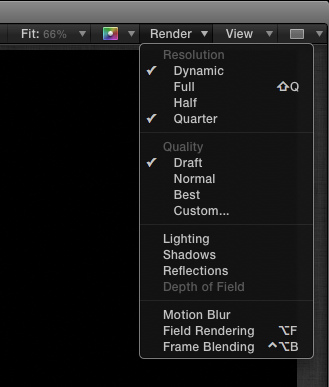
Render menu, top right of the Canvas, set the Resolution and Quality to lower settings. Turn off all functions in that menu which you are not using, or don't need to see at the moment. Also, set your Play Range in and out for only the section of the timeline you're working on (Cmd-Opt-i or o). I'm changing these constantly to help with playback.
But here are some hints that will help out with what you have.
Render menu, top right of the Canvas, set the Resolution and Quality to lower settings. Turn off all functions in that menu which you are not using, or don't need to see at the moment. Also, set your Play Range in and out for only the section of the timeline you're working on (Cmd-Opt-i or o). I'm changing these constantly to help with playback.
Please Log in to join the conversation.
- jdm4given1
-
- Offline
- Premium Member
-
Less
More
- Posts: 121
- Thank you received: 20
12 Apr 2013 16:59 #24299
by jdm4given1
Replied by jdm4given1 on topic Creating A Flame Wipe Transition In Motion 5
Thanks again. I'll try this out.
Please Log in to join the conversation.
