


- Posts: 383
- Thank you received: 36
3 Post Moderation Rule for New Boarders (25 Jan 2021)
New boarders will have their posts moderated - Don't worry if you cannot see your post immediately.
Pie Charts
03 Mar 2013 23:11 #22074
by Dave_EP
Pie Charts was created by Dave_EP
Can anyone point me to a good tutorial and/or plug-in for creating and animating Pie Charts (preferably simulated 3D) in Motion 5 (or FCPX!) ?
Thanks!
Thanks!
Please Log in to join the conversation.
- peteramwiggins
-

- Offline
- Administrator
-

- The Administrator :)
Less
More
- Posts: 1049
- Thank you received: 404
03 Mar 2013 23:43 #22076
by peteramwiggins
Administrator
Replied by peteramwiggins on topic Pie Charts
These can be made in Keynote and exported out for use in FCPX.
End result looks great in HD
End result looks great in HD
Administrator
Please Log in to join the conversation.
03 Mar 2013 23:51 #22077
by Dave_EP
Replied by Dave_EP on topic Pie Charts
Thanks. Any way to animate them easily?
Please Log in to join the conversation.
- peteramwiggins
-
- Offline
- Administrator
-
- The Administrator :)
Less
More
- Posts: 1049
- Thank you received: 404
03 Mar 2013 23:53 #22078
by peteramwiggins
Administrator
Replied by peteramwiggins on topic Pie Charts
Yes, do that in Keynote too, all very flexible
Administrator
Please Log in to join the conversation.
04 Mar 2013 07:09 #22086
by Dave_EP
Replied by Dave_EP on topic Pie Charts
Awesome. Thanks. Love the keynote styles and animation and they almost do what I needed, but I can't figure out how to get the last part 
I wanted to start with a Pie Chart with a single data entry, i.e. 100.% Then I wanted to add a second entity and have it animate the change on screen to maybe 95% / 5%. Then a third animated on to show maybe 80% / 5% / 15% etc.
The idea is to introduce things that the viewer hasn't thought of yet and show how it effects the pie as we go along, rather than reveal the "end result" from the start by having it build slice by slice until it's complete.
Right now i only seem to be able to animate on the pie segments ready made.
Hmmm..... so unless you can think how to do this in Keynote, I guess I'm still looking for ways to do this in motion
I wanted to start with a Pie Chart with a single data entry, i.e. 100.% Then I wanted to add a second entity and have it animate the change on screen to maybe 95% / 5%. Then a third animated on to show maybe 80% / 5% / 15% etc.
The idea is to introduce things that the viewer hasn't thought of yet and show how it effects the pie as we go along, rather than reveal the "end result" from the start by having it build slice by slice until it's complete.
Right now i only seem to be able to animate on the pie segments ready made.
Hmmm..... so unless you can think how to do this in Keynote, I guess I'm still looking for ways to do this in motion
Please Log in to join the conversation.

04 Mar 2013 12:46 #22099
by BenB
Replied by BenB on topic Pie Charts
I would do it in Keynote. It can be done really easily.
In Keynote, there is a "Charts" menu at the top middle of the tool bar. Click it and select the 3D pie chart. There are 2D and 3D versions of each chart. In the Inspector, in the Chart section, you can manipulate all sorts of things. Click "Edit Data" button to change the data. Play around with it, you'll figure it out.
To remove sections, set their value to zero.
Go to the user manual via the Help menu, do a search for Chart, for some good info.
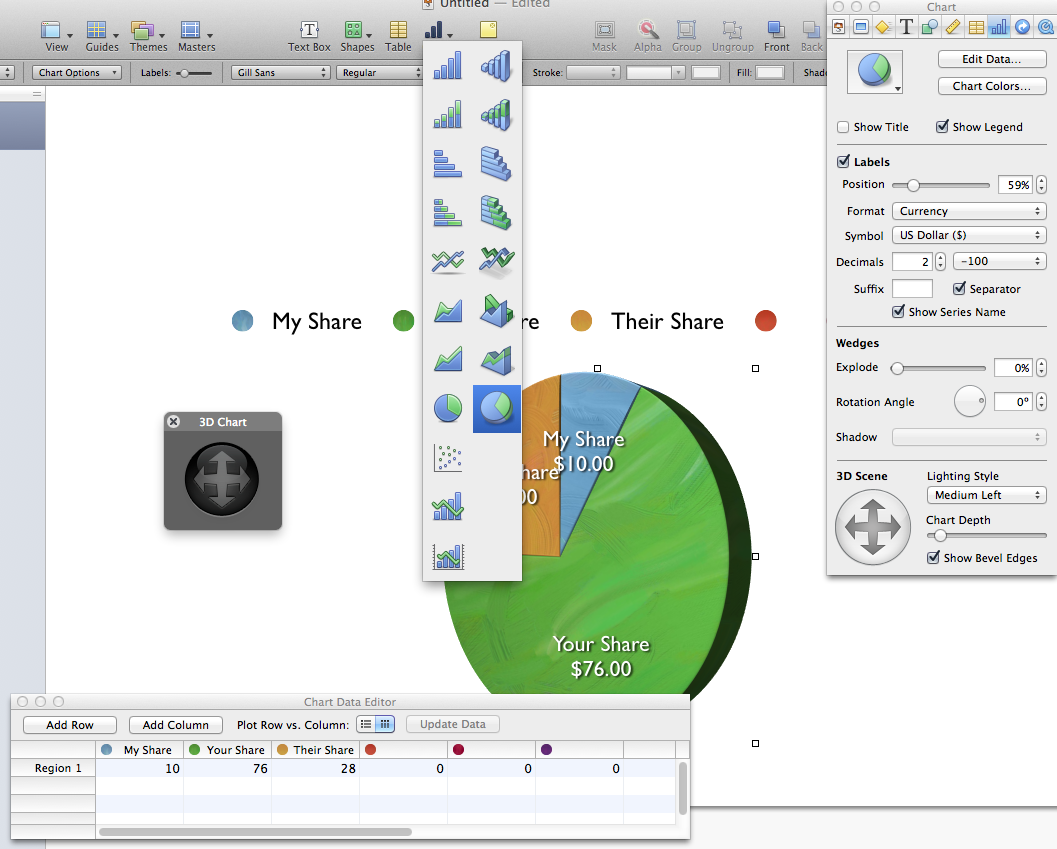
Here's a URL that explains how to animate a chart.
apple.stackexchange.com/questions/44917/...pie-chart-in-keynote
www.peachpit.com/articles/article.aspx?p=1085112&seqNum=7
In Keynote, there is a "Charts" menu at the top middle of the tool bar. Click it and select the 3D pie chart. There are 2D and 3D versions of each chart. In the Inspector, in the Chart section, you can manipulate all sorts of things. Click "Edit Data" button to change the data. Play around with it, you'll figure it out.
To remove sections, set their value to zero.
Go to the user manual via the Help menu, do a search for Chart, for some good info.
Here's a URL that explains how to animate a chart.
apple.stackexchange.com/questions/44917/...pie-chart-in-keynote
www.peachpit.com/articles/article.aspx?p=1085112&seqNum=7
Please Log in to join the conversation.
04 Mar 2013 12:55 - 04 Mar 2013 12:55 #22101
by Dave_EP
Replied by Dave_EP on topic Pie Charts
Thanks for the replies. I really appreciate it. Believe it or not I've already read a lot of the user manual relating to charts and animation, I have charts appearing, animating etc.
The one thing I can't figure out is how to change the value of some data as part of the presentation and have the pie chart animate to the new values.
Are you sure this can be done? If so I'll keep looking, but so far no luck finding it.
The one thing I can't figure out is how to change the value of some data as part of the presentation and have the pie chart animate to the new values.
Are you sure this can be done? If so I'll keep looking, but so far no luck finding it.
Last edit: 04 Mar 2013 12:55 by Dave_EP. Reason: Fixed a typo!
Please Log in to join the conversation.
04 Mar 2013 13:01 #22102
by BenB
Replied by BenB on topic Pie Charts
In Motion:
1- Hit "C" to get the oval tool, hold shift, drag to draw a circle.
2- Apply and adjust the Extrude filter, in the Stylize collection.
3- Select that layer, Command-D to duplicate it.
4- Remove Extrude from that layer, change its color.
5- With that layer selected, right-click on the center of it in the Canvas, from the pop-up menu select "Edit Point".
6- Select the bottom point, right-click, select Delete.
7- Select the right point, right-click, select Linear.
8- Move the right point to the center. Holding shift restrains movements to only up/down or left/right, it helps.
9- Click one of the outside edge points, right-click its outside handle, select "Break Handles", drag it onto the center of the control point.
10- Repeat for the other outside edge point.
11- F4, go to the Geometry section, manually set a keyframe for the Control Points section.
12- Move the playhead to a new position in the timeline.
13- Create a new manual keyframe in the Control Points section.
14- Move an outside edge control point to a new position, adjust its handle as needed, its really easy.
15- Double check the animation, create keyframes and tweak as needed.
1- Hit "C" to get the oval tool, hold shift, drag to draw a circle.
2- Apply and adjust the Extrude filter, in the Stylize collection.
3- Select that layer, Command-D to duplicate it.
4- Remove Extrude from that layer, change its color.
5- With that layer selected, right-click on the center of it in the Canvas, from the pop-up menu select "Edit Point".
6- Select the bottom point, right-click, select Delete.
7- Select the right point, right-click, select Linear.
8- Move the right point to the center. Holding shift restrains movements to only up/down or left/right, it helps.
9- Click one of the outside edge points, right-click its outside handle, select "Break Handles", drag it onto the center of the control point.
10- Repeat for the other outside edge point.
11- F4, go to the Geometry section, manually set a keyframe for the Control Points section.
12- Move the playhead to a new position in the timeline.
13- Create a new manual keyframe in the Control Points section.
14- Move an outside edge control point to a new position, adjust its handle as needed, its really easy.
15- Double check the animation, create keyframes and tweak as needed.
Please Log in to join the conversation.
04 Mar 2013 13:03 #22103
by BenB
The links I supplied should show you the workround tricks to doing that. You make a new slide, adjust, use the Magic Move or Dissolve transition.
Replied by BenB on topic Pie Charts
Dave_EP wrote: The one thing I can't figure out is how to change the value of some data as part of the presentation and have the pie chart animate to the new values.
The links I supplied should show you the workround tricks to doing that. You make a new slide, adjust, use the Magic Move or Dissolve transition.
Please Log in to join the conversation.
