


- Posts: 4
- Thank you received: 0
3 Post Moderation Rule for New Boarders (25 Jan 2021)
New boarders will have their posts moderated - Don't worry if you cannot see your post immediately.
how to move all keyframes in a mask at once?
28 Jul 2012 18:51 #12249
by loomer
how to move all keyframes in a mask at once? was created by loomer
I'm a total motion novice. My object order looks like this:
ClipA (small)
ClipB (small)
-BezierMask
BackgroundClip (full screen)
The bezier mask is used to mask out stuff in ClipB from the background. I modified both its potion and individual points almost frame by frame so it has tons of keyframes. Now I decided I also want to apply it to ClipA but if I copy it to ClipA its position relative to the background is wrong, apparently because all values in it are relative to ClipB on which it was created. So I'm wondering
- is there a way to copy masks/shapes around so they maintain their absolute position relative to the project
- if not, is there a way to drag the resulting offset object back into place so that ALL keyframes move? As far as I can tell dragging an objet (or editing its coordinates) only changes the value of that keyframe.
thanks,
Paul
ClipA (small)
ClipB (small)
-BezierMask
BackgroundClip (full screen)
The bezier mask is used to mask out stuff in ClipB from the background. I modified both its potion and individual points almost frame by frame so it has tons of keyframes. Now I decided I also want to apply it to ClipA but if I copy it to ClipA its position relative to the background is wrong, apparently because all values in it are relative to ClipB on which it was created. So I'm wondering
- is there a way to copy masks/shapes around so they maintain their absolute position relative to the project
- if not, is there a way to drag the resulting offset object back into place so that ALL keyframes move? As far as I can tell dragging an objet (or editing its coordinates) only changes the value of that keyframe.
thanks,
Paul
Please Log in to join the conversation.

28 Jul 2012 19:09 #12251
by BenB
Replied by BenB on topic Re: how to move all keyframes in a mask at once?
In the Keygrame Editor, there is a tool that allows you to select and move a whole group of keyframes along the timeline.
help.apple.com/motion/mac/5.0/en/motion/...pter=12%26section=11
help.apple.com/motion/mac/5.0/en/motion/...pter=12%26section=11
Please Log in to join the conversation.

28 Jul 2012 19:19 #12253
by NocoDave
Replied by NocoDave on topic Re: how to move all keyframes in a mask at once?
Copy the mask as a shape into a new group:
To do this hold down "alt" and drag the mask into the new group, wait a second before releasing the mouse button and a little pop up will appear, select "copy shape to group".
Next create an image mask on Clip A:
Right click on Clip A and select "Add Image Mask" from the pop up menu.
Then apply the new group that contains the shape to the image mask, to do this just drag it in there.
Now you can reposition the new group, with the mask inside, which is now converted to a shape. It will reposition to where you want while the shape maintains the position/control point animations inherited from the mask it was copied from.
To do this hold down "alt" and drag the mask into the new group, wait a second before releasing the mouse button and a little pop up will appear, select "copy shape to group".
Next create an image mask on Clip A:
Right click on Clip A and select "Add Image Mask" from the pop up menu.
Then apply the new group that contains the shape to the image mask, to do this just drag it in there.
Now you can reposition the new group, with the mask inside, which is now converted to a shape. It will reposition to where you want while the shape maintains the position/control point animations inherited from the mask it was copied from.
Please Log in to join the conversation.
28 Jul 2012 19:21 #12254
by NocoDave
I'm not sure he wants to reposition the mask in time Ben, but maybe. Can you clarify please Paul.
Replied by NocoDave on topic Re: how to move all keyframes in a mask at once?
In the Keygrame Editor, there is a tool that allows you to select and move a whole group of keyframes along the timeline.
I'm not sure he wants to reposition the mask in time Ben, but maybe. Can you clarify please Paul.
Please Log in to join the conversation.
29 Jul 2012 00:09 #12273
by loomer
Replied by loomer on topic Re: how to move all keyframes in a mask at once?
Thanks NocoDave, your technique is onto what I'm shooting for. It does seem to work but is a little tricky because once I select the group to move it I can no longer see the outline of the mask- I can see the effects of it but it makes positioning precisely difficult.
It does make me realize my question can be asked for a much simpler case not even involving masks:
if you make a shape, and move it around and alter it with keyframes, then subsequently decide you want it located elsewhere on your screen, how do you drag the whole thing? That seems like a pretty common thing to need to do, and adding the shape to an empty group seems lie a round about way to do it?
It does make me realize my question can be asked for a much simpler case not even involving masks:
if you make a shape, and move it around and alter it with keyframes, then subsequently decide you want it located elsewhere on your screen, how do you drag the whole thing? That seems like a pretty common thing to need to do, and adding the shape to an empty group seems lie a round about way to do it?
Please Log in to join the conversation.
29 Jul 2012 04:17 #12275
by BenB
Replied by BenB on topic Re: how to move all keyframes in a mask at once?
Like I said, you can drag the whole kit and Kaboole with the keyframe lasso tool. Either left, right, up, down, compress, expand, etc. Very powerful.
If all you need to do it change timing, be sure keyframes are turned on for your timeline, and you can drag one or more together left/right to re-time them.
Outside of that, you'll need to re-keyframe. One shape won't automatically conform to a different shape, if that's what you mean.
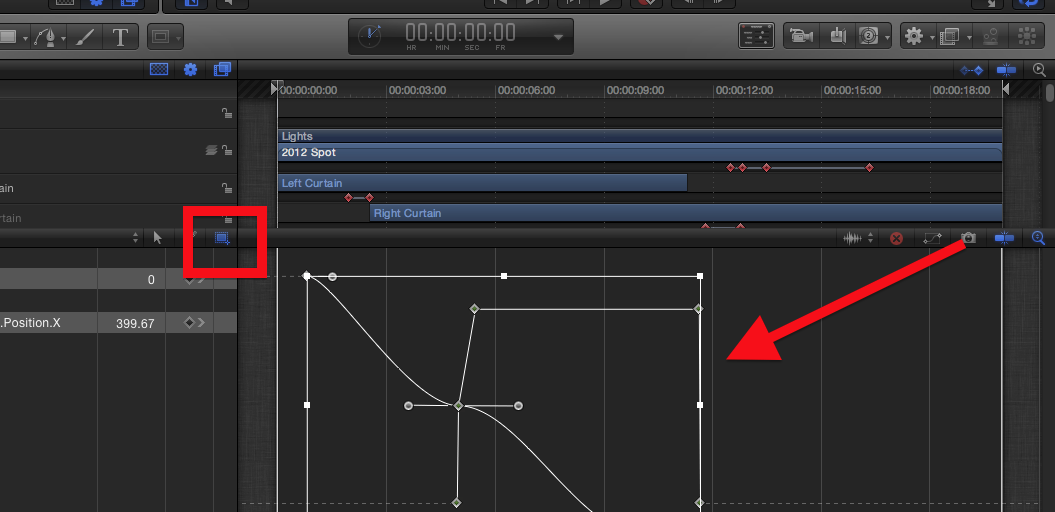
If all you need to do it change timing, be sure keyframes are turned on for your timeline, and you can drag one or more together left/right to re-time them.
Outside of that, you'll need to re-keyframe. One shape won't automatically conform to a different shape, if that's what you mean.
Please Log in to join the conversation.
29 Jul 2012 07:23 #12280
by NocoDave
Replied by NocoDave on topic Re: how to move all keyframes in a mask at once?
I'm hoping you can clear something up that I'm missing something about the "Transform Keyframe Tool" Ben, but I don't think I am.
Try creating a mask/shape etc. on the lower quarter of the canvas, keyframe only its "Y Position" value to move vertically to the upper quarter.
Now how do you use the "Transform Keyframe Tool" to move that animation path horizontally so that it moves from/to the same values in Y but at the left hand side of the screen?
Try creating a mask/shape etc. on the lower quarter of the canvas, keyframe only its "Y Position" value to move vertically to the upper quarter.
Now how do you use the "Transform Keyframe Tool" to move that animation path horizontally so that it moves from/to the same values in Y but at the left hand side of the screen?
Please Log in to join the conversation.
29 Jul 2012 16:11 - 29 Jul 2012 16:14 #12301
by BenB
Replied by BenB on topic Re: how to move all keyframes in a mask at once?
You'd only change the Transform:Position:X value, that's all. And I'd just use the Inspector to do that in.
Anyway, here's my rant for the day.
If I lasso in a whole batch of keyframes with the Keyframe Transform Tool (specialized tool making complex changes easy, not for doing simple changes), I can grab the left or right edge of the selection and compress/expand the whole group over time, making the resulting animation faster or slower, keeping all keyframes relative in time. Unrelated to your question, but very cool. Like wise compressing vertically from the top or bottom of the selected area makes interesting changes. As does grabbing a corner and reshaping the animation. Just interesting side notes.
What I was referring to originally was grabbing the middle of the selection and moving it left or right as a whole, keeping the whole set of keyframes in tact and moving them earlier or later in time. (Moving the whole thing up and down is interesting, again.)
But back to your original question, to change a single parameter you'd use the Edit Keyframe Tool, but even easier and faster would simply be to work in the Inspector.
Just something for fun here:
www.bbalser.com/video/keyframing.mov
Anyway, here's my rant for the day.
If I lasso in a whole batch of keyframes with the Keyframe Transform Tool (specialized tool making complex changes easy, not for doing simple changes), I can grab the left or right edge of the selection and compress/expand the whole group over time, making the resulting animation faster or slower, keeping all keyframes relative in time. Unrelated to your question, but very cool. Like wise compressing vertically from the top or bottom of the selected area makes interesting changes. As does grabbing a corner and reshaping the animation. Just interesting side notes.
What I was referring to originally was grabbing the middle of the selection and moving it left or right as a whole, keeping the whole set of keyframes in tact and moving them earlier or later in time. (Moving the whole thing up and down is interesting, again.)
But back to your original question, to change a single parameter you'd use the Edit Keyframe Tool, but even easier and faster would simply be to work in the Inspector.
Just something for fun here:
www.bbalser.com/video/keyframing.mov
Last edit: 29 Jul 2012 16:14 by BenB.
Please Log in to join the conversation.
29 Jul 2012 16:19 #12302
by NocoDave
Replied by NocoDave on topic Re: how to move all keyframes in a mask at once?
The "Transform Keyframe Tool" is great for transforming animation paths in time, but.
This is my point Ben, the animation path in my example follows the Y parameter and Im asking how to reposition that path along the X parameter so that animation along Y remains, but offset on the X.
To do this is easy, as the X parameter isn't key-framed, by using the transform parameters in the inspector, but with the "Transform Keyframe Tool"?
As soon as we then talk of animation paths with keyframes on both the X & Y planes aren't the inspector parameters ruled out as they change the animation path, rather than repositioning it in its integrity.
But back to your original question, to change a single parameter you'd use the Edit Keyframe Tool. And going from left to right on a screen is the X parameter, not Y. But I'd not even go to the keyframe editor to change a simple X or Y parameter keyframe. I'd do that in the Transform section of the Inspector, as it'd be faster and easier.
This is my point Ben, the animation path in my example follows the Y parameter and Im asking how to reposition that path along the X parameter so that animation along Y remains, but offset on the X.
To do this is easy, as the X parameter isn't key-framed, by using the transform parameters in the inspector, but with the "Transform Keyframe Tool"?
As soon as we then talk of animation paths with keyframes on both the X & Y planes aren't the inspector parameters ruled out as they change the animation path, rather than repositioning it in its integrity.
Please Log in to join the conversation.
29 Jul 2012 16:27 - 29 Jul 2012 16:29 #12305
by BenB
Replied by BenB on topic Re: how to move all keyframes in a mask at once?
Noco, you've totally lost me. I'm not sure what you're asking. If you need to change a keyframed parameter, you will be changing it no matter where you work on it. It's simply a matter of which method will make it easier and quicker to work it in.
If I have my Position Y keyframed, and not X, I can change X all I want and not effect any keyframes, no matter what section I work on it in.
As for the OP, if I understand the situation correctly:
- is there a way to copy masks/shapes around so they maintain their absolute position relative to the
No, when you Option-Drag a mask from one object layer to another, the keyframes stay at the same timing in the timeline as the original.
- if not, is there a way to drag the resulting offset object back into place so that ALL keyframes move?
Yes, by using the "Transform Keyframe Tool" to change when they happen in time. Or by turning on Show Keyframes in the Timeline and moving them left and right as a group.
To change them beyond that you'd have to work with them manually in the Inspector > Transform control.s
If I have my Position Y keyframed, and not X, I can change X all I want and not effect any keyframes, no matter what section I work on it in.
As for the OP, if I understand the situation correctly:
- is there a way to copy masks/shapes around so they maintain their absolute position relative to the
No, when you Option-Drag a mask from one object layer to another, the keyframes stay at the same timing in the timeline as the original.
- if not, is there a way to drag the resulting offset object back into place so that ALL keyframes move?
Yes, by using the "Transform Keyframe Tool" to change when they happen in time. Or by turning on Show Keyframes in the Timeline and moving them left and right as a group.
To change them beyond that you'd have to work with them manually in the Inspector > Transform control.s
Last edit: 29 Jul 2012 16:29 by BenB.
Please Log in to join the conversation.
29 Jul 2012 16:37 #12310
by NocoDave
It relates to this.
I'm asking how to do what the OP wants using that method, which I don't see as a possible, but now in your latest post you seem to agree.
Anyway, he doesn't want to change the keyframes in time, he wants to offset the animation path to maintain it's integrity somewhere along it's XY parameters.
It looks like your stuck with that, it's not ideal and hopefully someone will show up with a better method at some time, I'd like to know one.
Replied by NocoDave on topic Re: how to move all keyframes in a mask at once?
Noco, you've totally lost me. I'm not sure what you're asking.
It relates to this.
Like I said, you can drag the whole kit and Kaboole with the keyframe lasso tool. Either left, right, up, down, compress, expand, etc. Very powerful.
I'm asking how to do what the OP wants using that method, which I don't see as a possible, but now in your latest post you seem to agree.
Anyway, he doesn't want to change the keyframes in time, he wants to offset the animation path to maintain it's integrity somewhere along it's XY parameters.
Thanks NocoDave, your technique is onto what I'm shooting for. It does seem to work but is a little tricky because once I select the group to move it I can no longer see the outline of the mask
It looks like your stuck with that, it's not ideal and hopefully someone will show up with a better method at some time, I'd like to know one.
Please Log in to join the conversation.
29 Jul 2012 16:53 #12312
by BenB
Replied by BenB on topic Re: how to move all keyframes in a mask at once?
"once I select the group to move it I can no longer see the outline of the mask"
I'd love to see a screen shot. I'm not clear how you can't see the mask when selecting the group. Does it stop masking?
I'd love to see a screen shot. I'm not clear how you can't see the mask when selecting the group. Does it stop masking?
Please Log in to join the conversation.
29 Jul 2012 16:53 #12313
by NocoDave
Replied by NocoDave on topic Re: how to move all keyframes in a mask at once?
It just came to me Paul, you've key-framed the position parameters and the control points, you just need to copy the mask to the desired clip and reposition it using the anchor point parameters.
Please Log in to join the conversation.
29 Jul 2012 17:17 - 29 Jul 2012 17:58 #12317
by BenB
Replied by BenB on topic Re: how to move all keyframes in a mask at once?
Nice idea, Noco!
Here's a quick video I hope comes close to what's being attempted here. Let me know what I'm missing about what's the OP is trying.
I'm not keyframing anything here, but the basics of using the same Mask Source Shape, using the Mask Offset controls, and duplicating the Mask Source Shape should be the same when working with keyframes.
www.bbalser.com/video/masks.mov
I'd love to get my hands on this Motion project from the OP.
And this solution, use the "Transform Keyframe Tool" to lasso in all the X position parameters in the Keyframe editor. Hold the Command key down, while using the up and down arrow keys to move the whole mask left or right.
Here's a quick video I hope comes close to what's being attempted here. Let me know what I'm missing about what's the OP is trying.
I'm not keyframing anything here, but the basics of using the same Mask Source Shape, using the Mask Offset controls, and duplicating the Mask Source Shape should be the same when working with keyframes.
www.bbalser.com/video/masks.mov
I'd love to get my hands on this Motion project from the OP.
And this solution, use the "Transform Keyframe Tool" to lasso in all the X position parameters in the Keyframe editor. Hold the Command key down, while using the up and down arrow keys to move the whole mask left or right.
Last edit: 29 Jul 2012 17:58 by BenB.
Please Log in to join the conversation.
29 Jul 2012 18:05 - 29 Jul 2012 18:06 #12321
by loomer
Replied by loomer on topic Re: how to move all keyframes in a mask at once?
first off, thanks for doing so much to understand my goal. I believe you've mostly got it- in particular moving the offset of the mask or the anchor point of the object comes close. But I've attached a sample project that hopefully will help clarify. In it is a bezier object that uses key frames to move from a red square to a yellow one, rotating around its center and its shape changing for added fun. There is also a purple circle that uses gravity behavior to move from red to yellow.
The challenge: I decided I want those actions to occur from the green to blue squares instead. So the purple circle is easy, I just drag it over to the green square- done! If you can show how to do the same for the bezier, then the mystery is solved...
regards,
paul
The challenge: I decided I want those actions to occur from the green to blue squares instead. So the purple circle is easy, I just drag it over to the green square- done! If you can show how to do the same for the bezier, then the mystery is solved...
regards,
paul
Last edit: 29 Jul 2012 18:06 by loomer. Reason: green shape is square not circle
Please Log in to join the conversation.
29 Jul 2012 18:14 #12322
by NocoDave
Replied by NocoDave on topic Re: how to move all keyframes in a mask at once?
For that particular project you just need to add the bezier to a group, enable snapping, and move the group to align with the green rectangle.
Please Log in to join the conversation.
29 Jul 2012 19:07 #12324
by BenB
Replied by BenB on topic Re: how to move all keyframes in a mask at once?
Yes, correct. The details, place the playhead at your first frame of the project.
Right-click the "Bezier" layer, select "Group".
With that Group layer selected just drag it over to the correct position.
Done.
Yep, Noco has the easiest solution (which is always the best solution).
Right-click the "Bezier" layer, select "Group".
With that Group layer selected just drag it over to the correct position.
Done.
Yep, Noco has the easiest solution (which is always the best solution).
Please Log in to join the conversation.
30 Jul 2012 00:01 #12329
by loomer
Replied by loomer on topic Re: how to move all keyframes in a mask at once?
Agreed, I think creating a single element group for the object is currently the best approach. It's a little unintuitive- considering it's not required for any other key framed thing. But it certainly solves my original problem. Thanks!
Please Log in to join the conversation.
30 Jul 2012 02:13 #12330
by BenB
Replied by BenB on topic Re: how to move all keyframes in a mask at once?
When you understand the nature of layers and groups in Motion, and that a Group is a tool for creating animations, not just organizing, it often can make sense. Love the easy solutions, and the journeys on the way to finding them.
Please Log in to join the conversation.
