


3 Post Moderation Rule for New Boarders (25 Jan 2021)
New boarders will have their posts moderated - Don't worry if you cannot see your post immediately.
spinning ball - fcpx 10.6.3 -M1 pro - Sony FX9 files
- Betancourt
-
 Topic Author
- Offline
- Premium Member
-

I'm editing 4k XAVC 4.2.2 10 bit 25p from Sony FX9 and FX3, but in a 1080p timeline 25p. No multicam, no text overlays, no plugins. A simple clip by clip timeline.
Since FCPX didn't ask for optimized that media, I was trying to edit the original media. After applying some basic color correction, this time the dot line appears so I rendered the timeline, but the issue persits.
Transcoding to proxy seems to solve the problem, but it's far from ideal and I don't know why fcpx it's choppy if everything is supposed to be rendered.
I've tried moving the library and the footage to my ssd internal disk, or even to another ssd disk. I've deleted fcpx preferences. No luck.
I'm kind of dissapointed that my M1 pro cannot handle these files.
Macbook pro M1 Pro 16gb
MacOs 12.4
FCPX 10.6.3
Any help appreciated.
Pablo
Pablo Betancourt
Please Log in to join the conversation.


First thing to try would be to click the View pop-up menu in the upper-right corner of the viewer, then choose "Better Performance" in the Quality section. Turn off "Background render" in the Playback tab of the FCP preferences.
After doing the above, I'd suggest you check Activity Monitor while you're running FCP and check on your memory usage. If you have a lot of applications and other things running on your system, it's possible you could use up your 16 GB of RAM and then start using virtual memory (which is very slow in comparison).
This should be a good start in sorting this issue...
Please Log in to join the conversation.
- Betancourt
-
Topic Author
- Offline
- Premium Member
-
I'm using "better performance" and have "background render" disabled already.
Running or not running other apps in the background makes no difference for this issue.
While I don't think it's a RAM issue, I'll be checking activity monitor as you suggested.
Thanks!
Pablo
Pablo Betancourt
Please Log in to join the conversation.
Do you know the full specs of the video (from MediaInfo or Invisor)? The Sony Catalyst software, which is used to process media, mentions that some recording formats require "at least" 16 GB of RAM. I believe that M1 Macs have a shared RAM setup (CPU and GPU), so some of your 16 GB is being used by the GPU.
Tools like iStat Menus Pro can present clear info about memory usage, as well as graphs of how memory usage changes over time.
Also, there is no one XAVC format implementation. Yes, there's a specification, but each vendor that implements the format does things that may make it hard for another vendor to decode media optimally, particularly when the media is used in an NLE like FCP.
If I were forced to edit XAVC footage from an FX9 (like yours), I'd prefer to transcode things to ProRes422 (HQ). If I needed to maintain the original codec, I might use something like EditReady (preferred as it processes metadata the best), Compressor, or something like Shutter Encoder to re-wrap the files. Sometimes, just re-wrapping files can make them more compatible with NLEs.
A transcode of the original XAVC footage to H.264, H.265, or ProRes (with EditReady or Compressor) is likely going to work more fluidly in FCP, since the result is in an Apple-generated format/codec). The transcoding process gets rid of any "quirks" inherent to the original footage, though transcoding to H.264 or H.265 is going to result in some loss of quality.
Please Log in to join the conversation.
- Betancourt
-
Topic Author
- Offline
- Premium Member
-
I've looking at memory usage and it seems that it's not the issue. Look at this small video with Activity Monitor opened, it says it's only using 1,4 gb of memory:
youtube.com/shorts/1c9A4IQ-B6Y?feature=share
I think it's more related to fcpx having trouble with these kind of clips.
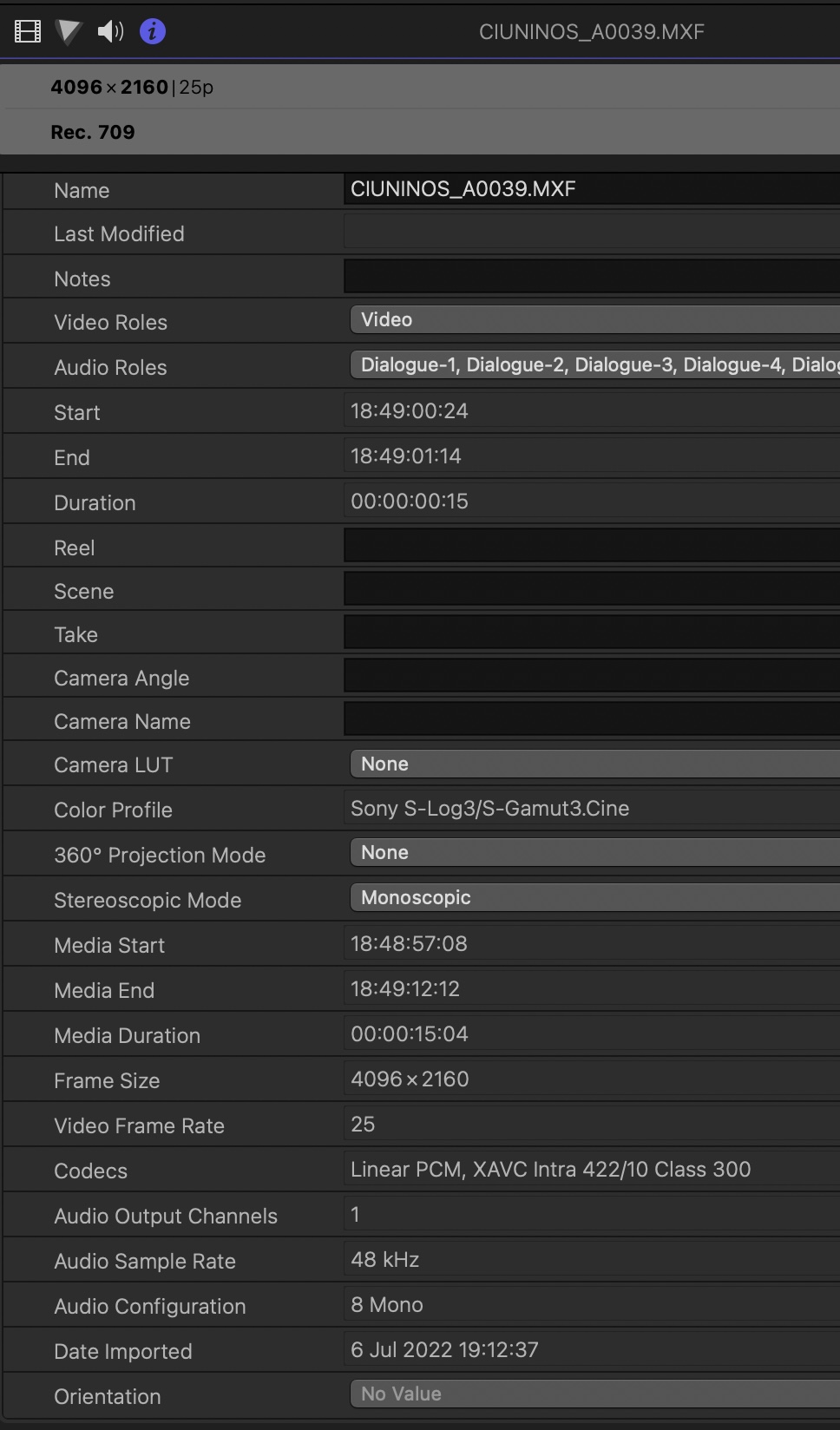
But, again, if fcpx can't handle this, why it's showing that it does not need render for playback, or even more strange, why is having trouble after actually rendering them (if I apply some color correction for example).
Many thanks for your help!
Pablo
Pablo Betancourt
Please Log in to join the conversation.

...spinning ball appearing when I tried to playback the timeline... When the playback finally starts, it's very choppy. After three or four tries it begins to run smoothly. Then I work a bit on my edit, and when I come back to playback, same problem again. I'm editing 4k XAVC 4.2.2 10 bit 25p from Sony FX9 and FX3, but in a 1080p timeline 25p. No multicam, no text overlays, no plugins. A simple clip by clip timeline....I'm kind of dissapointed that my M1 pro cannot handle these files....
It should not be doing that. I have an FX6 and two A7SIIIs (similar to FX3) and I've edited lots of 4k/23.98 10-bit 4:2:2 material from those on an M1 Max MacBook Pro 16. The M1 Pro should also be pretty fast -- it has the same video decode engine as the M1 Max. It is generally quite smooth. However there can be a difference between the FX6/9 which have only one 4k 10-bit 4:2:2 codec (XAVC-I) vs the FX3 which has many different codecs including HEVC and 10-bit 4:2:2 XAVC-S. The All-Intra codecs from either camera are usually smoother to edit, even on Apple Silicon.
A persistent, recurring "beachball" does not simply mean it's slow. That indicates something fundamental is wrong. That only happens when the app's main UI thread (which is FCP) fails to respond to user or system events for a certain period. In that contingency the Window Server component of MacOS realizes that and changes the cursor to a beachball.
You have already taken some of the proper troubleshooting steps. Here are some suggestions:
- Reboot the machine.
- Duplicate the timeline, open that, select all clips with CMD+A then remove all effects with Edit>Remove Effects. See if that plays any smoother. If yes that implies a problem related to effects. If not we must look elsewhere.
- If you are using an external monitor or any wireless audio or other hubs, as a troubleshooting step temporarily discontinue those. Tell us if that makes the problem go away.
- Run Activity Monitor, press the CPU tab, sort by %CPU, then do the FCP operations that are slow. Examine Activity Monitor to see what is using CPU. Is it FCP or are there other processes taking lots of time? If yes, state what those are.
- In the Memory tab of Activity Monitor, sort by the Memory column. How much memory is FCP consuming when it's slow, and what are the other top 5 processes? At the bottom is the memory pressure graph green?
- If you are running the Time Machine backup program open Time Machine preferences and temporarily turn off the checkbox "Back up Automatically". That may help determine if it's slowing things down.
- In some cases the MacOS Spotlight Indexing processes can run away and take lots of resources. You can temporarily disable that in System Preferences>Spotlight>Privacy, add the main system drive. It will complain, that is OK. Then run your FCP task and see if it's any different. After that remove the system drive from the privacy list and the Spotlight Indexes will rebuild. That will take a few minutes. You can monitor that by pressing CMD+space bar and type "indexing". When the bar graph goes away (or if it does not appear) then reindexing is finished.
Please Log in to join the conversation.
- Betancourt
-
Topic Author
- Offline
- Premium Member
-
I've tried rebooting several times, duplicate the project, creating a new one with no effects or plugins applied, moving to different ssds, connecting or disconnecting my second monitor. No time machine in the background.
Activity monitor is showing ver low memory consumption: 1.5 gb
CPU usage is very variable, from 30% to some peaks of 160% when opening new projects for instance. But while the spinning ball issue is taking place, cpu usage is always under 100%. No other process seems to be causing cpu usage like spotlight.
Pablo Betancourt
Please Log in to join the conversation.
Joema beat me to the punch... I was going to have you look at memory pressure, too, as well as looking at the top CPU and memory uses in Activity Monitor. We need to get more of a feel for the overall CPU and memory usage of the entire system.
Thanks for posting the video showing Activity Monitor, and for the inspector screenshot. Quite often, Invisor or MediaInfo provide much more thorough reporting of the specs. of media files.
Please Log in to join the conversation.
I would try rebooting with the shift key held down until "Safe Mode" shows up with the login screen. Log in and then restart. Starting in Safe Mode does some additional system checks and maintenance, as well as removing font cache files.
Try deleting generated mediia in FCP.
And, you could go into Font Book and use some of its tools to check for bad fonts.
Please Log in to join the conversation.
...if fcpx can't handle this, why it's showing that it does not need render for playback, or even more strange, why is having trouble after actually rendering them (if I apply some color correction for example)...
Are you saying if you take a 2 or 3 short DCI 4k/25 clips, put those in a 1080p 25 fps timeline, add one built-in color correction effect such as color wheels, then render those clips to cache with CTRL+R, it shows a beachball trying to play them?
Are the clips retimed? Do you have a compound clip composed of many .jpg stills in a time lapse? For these simple tests, is all the media and library on the main drive?
Another area to pursue: those codecs are tree-oriented, IOW FCP wants to import those via copy to library. In doing that they are re-wrapped which slightly changes the format to make it more compatible with FCP. Did you import it like that or did you extract the .MXF files from the tree and import those with "leave files in place?"
If so can you take a few test clips and import them to a new test library using the normal copy to library method? Then evaluate the performance using that media and library.
In general I prefer "leave files in place"; the above is simply a troubleshooting step. There have been past cases where certain codecs (mainly AVCHD) can cause severe performance problems if removed from the tree and imported using "leave files in place". However I haven't seen that in a long time.
Please Log in to join the conversation.
- Betancourt
-
Topic Author
- Offline
- Premium Member
-
Also I found this article about FX9 files issues, just in case someone else could find it helpfull.
www.newsshooter.com/2020/09/06/apples-re...ith-final-cut-pro-x/
Thanks to all for the great support!
Pablo
Pablo Betancourt
Please Log in to join the conversation.
Thanks Joema! It seems that the way I was importing the files was the issue. As you say, it's like something it's missing from the tree folder and fcpx has a hard time to reproduce them. I dragged the entire folder structure (XDROOT) and the files now play normal! First time I've experienced this kind of problem...
That is what I normally do on XAVC-I from the FX6; maybe that's why I haven't see the problem. If I have FCP Preferences>Import set for "leave files in place", then using Finder I drag/drop the the top-level "private" folder from the offloaded FX6 media to the FCP event, it imports using "leave files in place", despite the tree format. I've never had any performance problem with that.
Likewise the MP4 files from the FX3 and A7SIII are also handled that way. On previous Sony mirrorless cameras such as the A7RIII I don't think FCP would do that, rather it would copy to library. I don't remember when that behavior changed since my team mostly uses either ProRes from external recorders or MXF from the FX6.
However a few times I've imported using "leave files in place" the isolated MXF files that were copied to a disk folder. Those worked OK also, albeit on a M1 Max and M1 Ultra.
Another option is use EditReady to rewrap (not transcode) the files. That process is very fast. You just drag/drop the entire folder tree to EditReady and it figures out each clip and rewraps the media to individual "flat" files with no sidecar files. hedge.video/editready
That also places in each single media files most of the important metadata from the sidecar files. In a collaborative post production situation, it's sometimes easier to distribute "flat" files, not a folder tree. Sometimes those re-wrapped MXF files (which then have a .mov extension and Quicktime flag in the header) are handled better by various post production utilities. OTOH the automatic FCP color and gamma identification doesn't work for those, but I rarely use the auto-applied camera LUT anyway.
Please Log in to join the conversation.
- Betancourt
-
Topic Author
- Offline
- Premium Member
-
Another option is use EditReady to rewrap (not transcode) the files. That process is very fast. You just drag/drop the entire folder tree to EditReady and it figures out each clip and rewraps the media to individual "flat" files with no sidecar files. hedge.video/editready
I'll give editready a try, for sure. As you say, it could be handy in a collaborative workflow.That also places in each single media files most of the important metadata from the sidecar files. In a collaborative post production situation, it's sometimes easier to distribute "flat" files, not a folder tree. Sometimes those re-wrapped MXF files (which then have a .mov extension and Quicktime flag in the header) are handled better by various post production utilities
Many thanks for your detailed and helpfull insights.
Best,
Pablo
Pablo Betancourt
Please Log in to join the conversation.

If I have FCP Preferences>Import set for "leave files in place", then using Finder I drag/drop the the top-level "private" folder from the offloaded FX6 media to the FCP event, it imports using "leave files in place", despite the tree format. I've never had any performance problem with that.
I had no idea this behavior changed. Thank you!
Please Log in to join the conversation.
