


- Posts: 5
- Thank you received: 0
3 Post Moderation Rule for New Boarders (25 Jan 2021)
New boarders will have their posts moderated - Don't worry if you cannot see your post immediately.
Subclipping in FCPX
02 Jun 2014 03:57 #47119
by huffedti
Subclipping in FCPX was created by huffedti
Hello,
Has anyone figured out a way to subclip other than using favorites or the compound clip workaround?
I have dailies coming in that will most likely broken out into camera rolls ( some could be up to 5-10 minutes in length) It will be necessary to break these down into individual scenes then keyworded from there.
Thanks in advanced!
-Jeremy
Has anyone figured out a way to subclip other than using favorites or the compound clip workaround?
I have dailies coming in that will most likely broken out into camera rolls ( some could be up to 5-10 minutes in length) It will be necessary to break these down into individual scenes then keyworded from there.
Thanks in advanced!
-Jeremy
Please Log in to join the conversation.

02 Jun 2014 12:37 - 02 Jun 2014 13:14 #47127
by tpayton
Replied by tpayton on topic Subclipping in FCPX
Jeremy -
If you are willing to endure some bad grammar and random thoughts here is a script for a Tutorial I am working on called "sub-clip love". If nothing else the chart should prove helpful.
--
"Sub-clip Love in FCPX"
HI. This is T. Payton, creative director and editor in Albuquerque.
Sub-clipping in FCP X has been one of those things misunderstood by many. I’ve even seen some forum posts and tweets insisting that FCP X can’t even sub-clip. Which at the end of this video you will find rather amusing.
Some of this comes when you search the user guide for “sub-clip” and it comes up empty.
Let me offer a somewhat broader definition of sub-clips, or rather the point of sub-clips - organizing and working with portions of clips. If you look at it that way, marking and working with portions of clips, FCP X has unmatched sub-clip ability. In fact I’ll show you seven different kinds of sub-clips, which is nuts. They vary in their usefulness, but it shows some incredible power and flexibility of sub-clipping in FCPX.
So lets dive into more detail by looking at this chart:
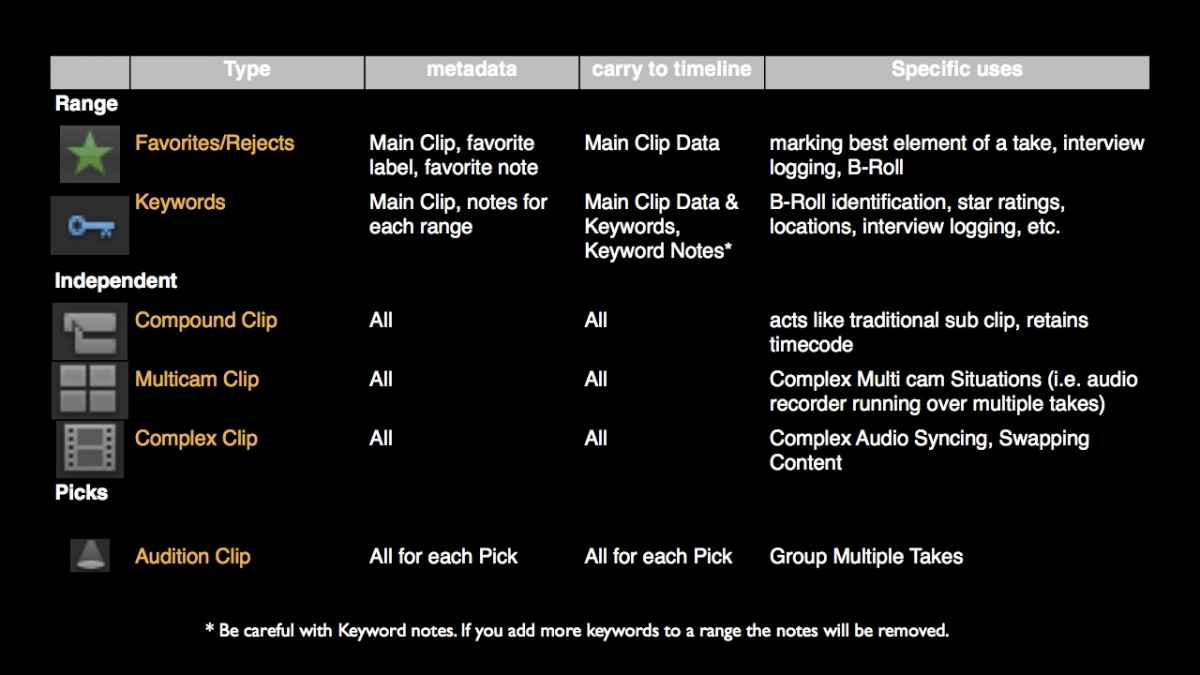
The first two are Ranged based “sub-clipping” which is a concept with FCPX championed. Select a range, apply a keyword, or rating and now you see that “range” as it’s own clip when viewed in the right way, or as saved ranges on one clip. It has limited metadata for each range, you can view and work with ranges independently, but they are not independent clips.
The next 3 are independent clips and more what you think of as traditional sub-clip. Each has full metadata and is shown as a clip in the event browser.
The last is audition which is a whole different animal. An audition clip doesn’t have its own metadata but rather each pick in and audition has metadata. This begs or further exploration.
So as you can see sub-clipping in FCPX is incredibly extensive and flexible.
Now lets explore these in detail and go over some of that ways you might use them.
Favorites:
- If you pardon the pun, Favorites are one of my favorite things about FCPX. A single clip can have as many favorite “ranges” as you like. When you have a single clip that you need to identify many ranges as good for your edit, such as interview, B-Roll or event the elements of a good take, a favorite is an excellent tool.
- One limitation of favorite ranges is that cannot overlap. Favorites need to have at least non favorite frame between each. If you need overlapping sub-clips, there are better options.
- Favorites are not independent clips, although they can be viewed in that way when “show favorites” in the event browser. But although this view shows the favorite ranges, all metadata including the clip name is brought from the main clip.
- The favorite range can be renamed. Excellent for logging interview or just giving some additional information. Plus you can add notes to each favorite. However, the favorite name as well as the notes for each these are only viewable in the event browser and don’t get transferred to the timeline as we saw in our chart. Just the main clip metadata is transferred.
-Demo (Favorite a clip and then show it can be renamed, but when viewed as favorites shows the main clip name.)
Rejects work exactly like Favorites except they are red. There is no reason why you have to use rejects to mean elements you won’t use. You can name them just like you do favorites, and even add notes. Therefore you can not only kill a certain portion of a clip, but say exactly why you killed it.
Keywords
- Keywords are the big brother of favorites. Like favorites they are range based, but they can overlap, giving you incredible flexibility.
- You can view each keyword range by filtering on the event browser, either by clicking on a keyword collection under the event or by using the filter feature.
- However, they are not truly independent, they will mostly be pulling metadata from the main clip, however, there is a small amount of metadata that we will see is very valuable.
- Keywords range uses are frankly unlimited. You can use them as traditional bins, to identify elements when logging footage, and you can have an unlimited number of keywords on any portion of a clip. They can overlap as needed also.
- We use keywords quite a bit to identify b-roll elements, especially making quick passes for specific types of elements. Viewing the browser as a filmstrip lets you quickly find things like a happy child, etc.
- I often use keywords for a star rating system. Placing those star ratings as keyword shortcuts and quickly marking your clips. Excellent for quickly reviewing stills for example, or skimming through clips.
- I mentioned before that keyword ranges didn’t have a lot of their own metadata, but what they do have is pretty fantastic, that is notes, which can be transferred to the timeline.
You can therefore create a star rating system for an interview for example, and have partial transcriptions in the notes.
Let me show you how that would work:
- Demo: Creating star rating keywords, 1-5. Marking keyword ranges with notes. Show how you can use the tab key to select notes and enter without having to touch mouse.
- we log a lot of interviews, and this as been the biggest boom for us.
Now if we only had Ratings and Keywords that would be great, but just wait there is more.
FCPX has very traditional sub-clipping also, and lets look at those:
When you select a range of a clip and right click on that range, you’ll see your “sub-clipping" options. The first and most powerful is a compound clip:
Compound Clips
Compound clips have had a rocky road with FCPX. They have two main uses, Editing Sources and for Organization. Prior to 10.0.6 they were frankly dangerous to use as editing sources. Now they are great editing sources.
So right clicking on a range and choosing create compound clip makes a true independent clip, will full metadata capabilities, of the range that was selected.
- Because they are independent they are closes to what many have in mind when they think of sub-clips.
- They have full metadata capabilities just like regular clips, and furthermore you can use the range based tools of favorites, rejects and keywords for each compound clip.
- Compound clips also inherit the timecode of the range. Which would make editors working from a EDL quite happy.
- Compound clips are also “parent” clips in that when put in a timeline, they reference the clip in the event browser. Therefore if you use the same Compound clip 10 times in various projects, changing it one place will change it everywhere.
- One of the best uses for compound clip based sub-clips is when you get a string out and need to isolate shots or scenes that were captured in one clip.
- Like this:
(demo of working on string out of clip, Gunsmoke film school footage. Using markers to note slate clap, then creating all compound clips using keyboard only. Show not renaming compound clips until after they have all been created by logging shot workflow.)
Multicam Clip
The other option you had when right clicking a single range was Multicam Clip. A multicam clip as a sub-clip. Yes. It is fully independent, and a true multicam clip but just contains the selected range.
Actually anytime you create a multicam clip you are actually using the selected ranges to do so.
- For example if you shot an event and only had a second camera for a small portion, you could select that small portion in both angles and just choose to use those in a multicam. That way avoiding some of the limitations that comes with working with multicam clips.
Demo:
One use for this might be for ADR work. If you setup a session where they talent say repeated the line 3 times on one take, you could select each one of the takes, then sync it up to the video clip, and now you can choose between your audio takes but leave the video in tact.
- Once you see this you realize that multicam clips can be used like Audition clips, with multiple takes. But unlike auditions, a multicam clip has its own metadata, not the metadata from the clip itself. And they will remain the same length in your timeline.
- There are lots of possibilities for this for your workflow.
Synchronized Clips
As you might have guessed if you can select multiple ranges to be used for multicam clips, surely you can do this for synchronized clips. Synchronized clips are fully independent will full metadata.
- the use for this as sub-clips probably isn’t widespread but if you had favorite ranges marked for audio and video already, you can just sync those elements.
- One thing to note about Syncronized Clips, they are actually in a category I like to call “Complex Clips”
Complex Clip
Another type of sub-clip, that is frankly a bit of a stretch is a complex clip. A complex clip is what I call an old style pre 10.0.6 compound clip. I have no idea if it really called that but it makes sense once I describe it. That is right click on a “normal” clip and suddenly you have a timeline, where you can add more elements. Now I wouldn’t suggest this, but what could be useful is trimming the start and stop points of a complex clip.
- So here I duplicated a clip and then open timeline and top and tail the video and audio.
- When I back out to the event, you can see the duration is different.
- Again when would you use this? I don’t know. It is a bit awkward to use but the option is there.
Audition
Finally we come to a very unusual sub-clip container called an Audition Clip.
- Auditions are not really a clip at all, but rather a grouping of other clips that has one currently active clip. Therefore the audition doesn’t have any metadata of its own. The clips do.
- A great use for this in sub-clipping is when you have multiple takes of different lengths in a single clip that you can now assemble into one clip and switch between them.
Demo
- Here are three takes of the word “it’s a no brainer” select the ranges individually and then create one audition clip.
- Once in an audition you can actually rename the takes.
So I hope this gives you a great taste of sub-clipping in FCPX.
If you are willing to endure some bad grammar and random thoughts here is a script for a Tutorial I am working on called "sub-clip love". If nothing else the chart should prove helpful.
--
"Sub-clip Love in FCPX"
HI. This is T. Payton, creative director and editor in Albuquerque.
Sub-clipping in FCP X has been one of those things misunderstood by many. I’ve even seen some forum posts and tweets insisting that FCP X can’t even sub-clip. Which at the end of this video you will find rather amusing.
Some of this comes when you search the user guide for “sub-clip” and it comes up empty.
Let me offer a somewhat broader definition of sub-clips, or rather the point of sub-clips - organizing and working with portions of clips. If you look at it that way, marking and working with portions of clips, FCP X has unmatched sub-clip ability. In fact I’ll show you seven different kinds of sub-clips, which is nuts. They vary in their usefulness, but it shows some incredible power and flexibility of sub-clipping in FCPX.
So lets dive into more detail by looking at this chart:
The first two are Ranged based “sub-clipping” which is a concept with FCPX championed. Select a range, apply a keyword, or rating and now you see that “range” as it’s own clip when viewed in the right way, or as saved ranges on one clip. It has limited metadata for each range, you can view and work with ranges independently, but they are not independent clips.
The next 3 are independent clips and more what you think of as traditional sub-clip. Each has full metadata and is shown as a clip in the event browser.
The last is audition which is a whole different animal. An audition clip doesn’t have its own metadata but rather each pick in and audition has metadata. This begs or further exploration.
So as you can see sub-clipping in FCPX is incredibly extensive and flexible.
Now lets explore these in detail and go over some of that ways you might use them.
Favorites:
- If you pardon the pun, Favorites are one of my favorite things about FCPX. A single clip can have as many favorite “ranges” as you like. When you have a single clip that you need to identify many ranges as good for your edit, such as interview, B-Roll or event the elements of a good take, a favorite is an excellent tool.
- One limitation of favorite ranges is that cannot overlap. Favorites need to have at least non favorite frame between each. If you need overlapping sub-clips, there are better options.
- Favorites are not independent clips, although they can be viewed in that way when “show favorites” in the event browser. But although this view shows the favorite ranges, all metadata including the clip name is brought from the main clip.
- The favorite range can be renamed. Excellent for logging interview or just giving some additional information. Plus you can add notes to each favorite. However, the favorite name as well as the notes for each these are only viewable in the event browser and don’t get transferred to the timeline as we saw in our chart. Just the main clip metadata is transferred.
-Demo (Favorite a clip and then show it can be renamed, but when viewed as favorites shows the main clip name.)
Rejects work exactly like Favorites except they are red. There is no reason why you have to use rejects to mean elements you won’t use. You can name them just like you do favorites, and even add notes. Therefore you can not only kill a certain portion of a clip, but say exactly why you killed it.
Keywords
- Keywords are the big brother of favorites. Like favorites they are range based, but they can overlap, giving you incredible flexibility.
- You can view each keyword range by filtering on the event browser, either by clicking on a keyword collection under the event or by using the filter feature.
- However, they are not truly independent, they will mostly be pulling metadata from the main clip, however, there is a small amount of metadata that we will see is very valuable.
- Keywords range uses are frankly unlimited. You can use them as traditional bins, to identify elements when logging footage, and you can have an unlimited number of keywords on any portion of a clip. They can overlap as needed also.
- We use keywords quite a bit to identify b-roll elements, especially making quick passes for specific types of elements. Viewing the browser as a filmstrip lets you quickly find things like a happy child, etc.
- I often use keywords for a star rating system. Placing those star ratings as keyword shortcuts and quickly marking your clips. Excellent for quickly reviewing stills for example, or skimming through clips.
- I mentioned before that keyword ranges didn’t have a lot of their own metadata, but what they do have is pretty fantastic, that is notes, which can be transferred to the timeline.
You can therefore create a star rating system for an interview for example, and have partial transcriptions in the notes.
Let me show you how that would work:
- Demo: Creating star rating keywords, 1-5. Marking keyword ranges with notes. Show how you can use the tab key to select notes and enter without having to touch mouse.
- we log a lot of interviews, and this as been the biggest boom for us.
Now if we only had Ratings and Keywords that would be great, but just wait there is more.
FCPX has very traditional sub-clipping also, and lets look at those:
When you select a range of a clip and right click on that range, you’ll see your “sub-clipping" options. The first and most powerful is a compound clip:
Compound Clips
Compound clips have had a rocky road with FCPX. They have two main uses, Editing Sources and for Organization. Prior to 10.0.6 they were frankly dangerous to use as editing sources. Now they are great editing sources.
So right clicking on a range and choosing create compound clip makes a true independent clip, will full metadata capabilities, of the range that was selected.
- Because they are independent they are closes to what many have in mind when they think of sub-clips.
- They have full metadata capabilities just like regular clips, and furthermore you can use the range based tools of favorites, rejects and keywords for each compound clip.
- Compound clips also inherit the timecode of the range. Which would make editors working from a EDL quite happy.
- Compound clips are also “parent” clips in that when put in a timeline, they reference the clip in the event browser. Therefore if you use the same Compound clip 10 times in various projects, changing it one place will change it everywhere.
- One of the best uses for compound clip based sub-clips is when you get a string out and need to isolate shots or scenes that were captured in one clip.
- Like this:
(demo of working on string out of clip, Gunsmoke film school footage. Using markers to note slate clap, then creating all compound clips using keyboard only. Show not renaming compound clips until after they have all been created by logging shot workflow.)
Multicam Clip
The other option you had when right clicking a single range was Multicam Clip. A multicam clip as a sub-clip. Yes. It is fully independent, and a true multicam clip but just contains the selected range.
Actually anytime you create a multicam clip you are actually using the selected ranges to do so.
- For example if you shot an event and only had a second camera for a small portion, you could select that small portion in both angles and just choose to use those in a multicam. That way avoiding some of the limitations that comes with working with multicam clips.
Demo:
One use for this might be for ADR work. If you setup a session where they talent say repeated the line 3 times on one take, you could select each one of the takes, then sync it up to the video clip, and now you can choose between your audio takes but leave the video in tact.
- Once you see this you realize that multicam clips can be used like Audition clips, with multiple takes. But unlike auditions, a multicam clip has its own metadata, not the metadata from the clip itself. And they will remain the same length in your timeline.
- There are lots of possibilities for this for your workflow.
Synchronized Clips
As you might have guessed if you can select multiple ranges to be used for multicam clips, surely you can do this for synchronized clips. Synchronized clips are fully independent will full metadata.
- the use for this as sub-clips probably isn’t widespread but if you had favorite ranges marked for audio and video already, you can just sync those elements.
- One thing to note about Syncronized Clips, they are actually in a category I like to call “Complex Clips”
Complex Clip
Another type of sub-clip, that is frankly a bit of a stretch is a complex clip. A complex clip is what I call an old style pre 10.0.6 compound clip. I have no idea if it really called that but it makes sense once I describe it. That is right click on a “normal” clip and suddenly you have a timeline, where you can add more elements. Now I wouldn’t suggest this, but what could be useful is trimming the start and stop points of a complex clip.
- So here I duplicated a clip and then open timeline and top and tail the video and audio.
- When I back out to the event, you can see the duration is different.
- Again when would you use this? I don’t know. It is a bit awkward to use but the option is there.
Audition
Finally we come to a very unusual sub-clip container called an Audition Clip.
- Auditions are not really a clip at all, but rather a grouping of other clips that has one currently active clip. Therefore the audition doesn’t have any metadata of its own. The clips do.
- A great use for this in sub-clipping is when you have multiple takes of different lengths in a single clip that you can now assemble into one clip and switch between them.
Demo
- Here are three takes of the word “it’s a no brainer” select the ranges individually and then create one audition clip.
- Once in an audition you can actually rename the takes.
So I hope this gives you a great taste of sub-clipping in FCPX.
Last edit: 02 Jun 2014 13:14 by tpayton.
Please Log in to join the conversation.

02 Jun 2014 19:19 #47138
by Soundwise
Replied by Soundwise on topic Subclipping in FCPX
Wow mr.T!
May I copy your chart and use it to teach the ignorant and unbelievers?
Great post!
May I copy your chart and use it to teach the ignorant and unbelievers?
Great post!
Please Log in to join the conversation.
02 Jun 2014 19:26 #47139
by tpayton
Replied by tpayton on topic Subclipping in FCPX
Oh sure, but that was just a quick draft. I'll make you a nicer one in a PDF and post it here as soon as I can.
Please Log in to join the conversation.
- SunbeamRapier
-

- Offline
- New Member
-

Less
More
- Posts: 12
- Thank you received: 0
12 Jun 2014 22:02 #47734
by SunbeamRapier
Replied by SunbeamRapier on topic Subclipping in FCPX
This is a great summary - I wish I had read this before I spent the whole day trying to figure out how to make sub clips that I can work with. A couple of points to consider:
1: You need to take two copies of your original clips before you start creating discrete compound sub clips, because (unlike sub clips in the old Final Cut Pro) you will be making destructive edits to the original clip. The second copy is required if you want to make two sub clips which have adjacent frames and you want to give yourself some latitude for your in/out positions by creating overlapping sub clips.
2: Caution is required when using keywords:
a) extreme caution is required where you are working with long clips, such as you might see if you have a master clip recorded to tape during an interview (I work this way a lot of the time). There are two risks here - the first is that you may inadvertently press "i" rather than shift command "i" at some point in the clip, thereby deleting all your previous keyword selections in that clip. Easy to do, but with potentially disastrous consequences.
b) caution is also required when deleting keywords or keyword collections - which you might want to do if you decide your keyword organisation is wrong-headed and you want to change things around. In this situation you need to be very careful that you do not delete a keyword or keyword collection which includes any clips which have only this keyword - if you do your "virtual" sub clip will be vaporised irrecoverably and without warning when the last keyword is removed (except for the puff of smoke to indicate something has been deleted, but not what it was...)
c) be careful not to mistype a keyword - you might find it difficult to locate a sub clip if you have a large number of such selections and you have mistyped a keyword.
d) if you have a lot of material it would be sensible to apply a specific keyword to EVERY sub clip, such as "subclip" so that you can create a list of all your sub clips in which each appears only once. This may help avoid a situation where you inadvertently include the same sub clip more than once or inadvertently leave sub clips out. In a big project this may be important and may also prevent the loss of sub clips when keywords are deleted.
My comments: When this functionality was designed with the idea of replacing discrete sub clips and bins, the developers appear to have assumed that your source material will contain lots of short clips which will generally have a single keyword selection. You can add more than one selection to a clip but it is very easy to erase previous selections if you forget to press SHIFT COMMAND "i". Keywords are a great tool and would be a great adjunct to the traditional way of making sub clips, but if used on their own they change your relationship with your material in a way that removes information, control and structure - you no longer have a true picture of your material because sub clips with multiple keywords can appear more than once. That may not matter - it depends on whether you need to be methodical about incorporating your sub clips in the finished sequence. Caution is required here - the software was not really designed with large clips in mind, so you are in effect working against the philosophy of the software, which imposes its own risks.
Further questions: Organising sub clips in a logical sequence is not immediately intuitive - is there a way to organise sub clips so that you retain their sequence in the original material? In an interview, for instance, you may want to preserve the sequence so that individual clips are seen "in context" so that you do not inadvertently distort the meaning. Can you sort sub clips by parameters such as start position in the master clip? (This is important in an interview setting but perhaps also applicable in any storyline.) Again, I feel that the developers had a view of what the original material would look like and if your material is based on long clips you will be struggling to organise your edited material in a logical manner - but I am new to Pro X and still struggling with the new way of doing things...
1: You need to take two copies of your original clips before you start creating discrete compound sub clips, because (unlike sub clips in the old Final Cut Pro) you will be making destructive edits to the original clip. The second copy is required if you want to make two sub clips which have adjacent frames and you want to give yourself some latitude for your in/out positions by creating overlapping sub clips.
2: Caution is required when using keywords:
a) extreme caution is required where you are working with long clips, such as you might see if you have a master clip recorded to tape during an interview (I work this way a lot of the time). There are two risks here - the first is that you may inadvertently press "i" rather than shift command "i" at some point in the clip, thereby deleting all your previous keyword selections in that clip. Easy to do, but with potentially disastrous consequences.
b) caution is also required when deleting keywords or keyword collections - which you might want to do if you decide your keyword organisation is wrong-headed and you want to change things around. In this situation you need to be very careful that you do not delete a keyword or keyword collection which includes any clips which have only this keyword - if you do your "virtual" sub clip will be vaporised irrecoverably and without warning when the last keyword is removed (except for the puff of smoke to indicate something has been deleted, but not what it was...)
c) be careful not to mistype a keyword - you might find it difficult to locate a sub clip if you have a large number of such selections and you have mistyped a keyword.
d) if you have a lot of material it would be sensible to apply a specific keyword to EVERY sub clip, such as "subclip" so that you can create a list of all your sub clips in which each appears only once. This may help avoid a situation where you inadvertently include the same sub clip more than once or inadvertently leave sub clips out. In a big project this may be important and may also prevent the loss of sub clips when keywords are deleted.
My comments: When this functionality was designed with the idea of replacing discrete sub clips and bins, the developers appear to have assumed that your source material will contain lots of short clips which will generally have a single keyword selection. You can add more than one selection to a clip but it is very easy to erase previous selections if you forget to press SHIFT COMMAND "i". Keywords are a great tool and would be a great adjunct to the traditional way of making sub clips, but if used on their own they change your relationship with your material in a way that removes information, control and structure - you no longer have a true picture of your material because sub clips with multiple keywords can appear more than once. That may not matter - it depends on whether you need to be methodical about incorporating your sub clips in the finished sequence. Caution is required here - the software was not really designed with large clips in mind, so you are in effect working against the philosophy of the software, which imposes its own risks.
Further questions: Organising sub clips in a logical sequence is not immediately intuitive - is there a way to organise sub clips so that you retain their sequence in the original material? In an interview, for instance, you may want to preserve the sequence so that individual clips are seen "in context" so that you do not inadvertently distort the meaning. Can you sort sub clips by parameters such as start position in the master clip? (This is important in an interview setting but perhaps also applicable in any storyline.) Again, I feel that the developers had a view of what the original material would look like and if your material is based on long clips you will be struggling to organise your edited material in a logical manner - but I am new to Pro X and still struggling with the new way of doing things...
Please Log in to join the conversation.
- haysoos123
-
- Offline
- Platinum Member
-

Less
More
- Posts: 402
- Thank you received: 72
12 Jun 2014 23:24 #47744
by haysoos123
Replied by haysoos123 on topic Subclipping in FCPX
@SunbeamRapier
I think you're overthinking the use of keyword ranges, which can act like the subclips of old, but have some advantages. The thing to keep in mind is that it's an organizational tool, and it's not like creating new master clips or subclips. You don't really need "extreme caution" when dealing with them. Even if you remove keywords, it doesn't affect your cuts or anything like that; you've just removed some tagging of some clips.
Your keywords don't get deleted when you press "i." That just marks an in point in a clip. I think you are mistaking this for the fact that FCPX keeps track of your last in-out range selections on a per-clip basis.
If you've misnamed a keyword, just rename it in the browser. You can do searches on partial words, etc. to find these if needed.
Almost everyone uses more than one single keyword per clip. It's MEANT to do that, and is in fact a big advantage over traditional bins, where a clip can only fit in one bin. In the old way, you have to make subclips if you want to put them in other bins (and unlike Avid, in FCP7, subclips had hard boundaries with no handles... you had to tell it to remove the subclip boundaries explicitly to get rid of them).
What I'm really saying is that you have to stop thinking about keyword ranges as just subclips. They are more flexible, you can sort by them in smart collections, do boolean operations on them, and modifying or deleting them does nothing other than change the way you're sorting your clips... it doesn't change your cuts at all, and there is nothing destructive about them (meaning, they don't affect your clips and are just metadata).
I think you're overthinking the use of keyword ranges, which can act like the subclips of old, but have some advantages. The thing to keep in mind is that it's an organizational tool, and it's not like creating new master clips or subclips. You don't really need "extreme caution" when dealing with them. Even if you remove keywords, it doesn't affect your cuts or anything like that; you've just removed some tagging of some clips.
Your keywords don't get deleted when you press "i." That just marks an in point in a clip. I think you are mistaking this for the fact that FCPX keeps track of your last in-out range selections on a per-clip basis.
If you've misnamed a keyword, just rename it in the browser. You can do searches on partial words, etc. to find these if needed.
Almost everyone uses more than one single keyword per clip. It's MEANT to do that, and is in fact a big advantage over traditional bins, where a clip can only fit in one bin. In the old way, you have to make subclips if you want to put them in other bins (and unlike Avid, in FCP7, subclips had hard boundaries with no handles... you had to tell it to remove the subclip boundaries explicitly to get rid of them).
What I'm really saying is that you have to stop thinking about keyword ranges as just subclips. They are more flexible, you can sort by them in smart collections, do boolean operations on them, and modifying or deleting them does nothing other than change the way you're sorting your clips... it doesn't change your cuts at all, and there is nothing destructive about them (meaning, they don't affect your clips and are just metadata).
Please Log in to join the conversation.
- Tom Wolsky
-

- Offline
- Moderator
-

12 Jun 2014 23:31 #47747
by Tom Wolsky
Replied by Tom Wolsky on topic Subclipping in FCPX
Personally I hate using the term subclipping in FCPX because it's so limiting in its capabilities and wholly inappropriate to the flexibility collections provide. Subclipping is the equivalent of making a separate keyword collection for each segment of a clip, for each soundbite in an interview. I see people doing that.
Please Log in to join the conversation.
- haysoos123
-
- Offline
- Platinum Member
-
Less
More
- Posts: 402
- Thank you received: 72
12 Jun 2014 23:33 #47749
by haysoos123
Replied by haysoos123 on topic Subclipping in FCPX
One more thing: I would advise you not to think of compound clips as a type of subclip. Even though you CAN try to use them that way, they are a lot closer to nested sequences in FCP7, and you should use them more like that. I use them a lot to group a heavily layered section together, for example. Or maybe you want to put a single dissolve between two layered sections. That sort of thing.
Please Log in to join the conversation.
- SunbeamRapier
-
- Offline
- New Member
-
Less
More
- Posts: 12
- Thank you received: 0
12 Jun 2014 23:36 #47750
by SunbeamRapier
Replied by SunbeamRapier on topic Subclipping in FCPX
Hmmm. In this case I have a single clip of 1hr 40mins duration - the master clip, written to tape, from Camera 1. There may be 50-60 sub clips, virtual or otherwise, which I extract from this master clip. If I get towards the end of the clip, say at the 1hr 15mins point, and press "i" then all the ranges I created up to that point will disappear. If I notice this at the time, I can undo - but if the previous ranges are not visible (if there is a long gap between marked ranges) I may not notice straight away.
When this happens, the key worded ranges are still accessible from the keyword collections, but they are degraded somewhat - they are no longer editable in the origin clip; cannot be marked as favourite and, therefore, can no longer be given a name (a clip marked as favourite can be renamed).
This may not matter - but that depends on your workflow and whatever system you use to arrange, sort and collate your sub clips.
If you delete a keyword collection or a keyword in this scenario, you lose that range if no further keywords are linked to the sub clip. There is no recovery - you must identify what you have lost and recreate the range and reassign a keyword.
If you have a large project this can make it difficult to manage - creating compound clips helps, but they are not as flexible as the old sub clips (you have no latitude for moving your in/out selections to extend your sub clip.
I don't think any of this matters where your media is a collection of short clips, but when you are working with loooong clips it makes things tricky and unexpected consequences are more likely.
When this happens, the key worded ranges are still accessible from the keyword collections, but they are degraded somewhat - they are no longer editable in the origin clip; cannot be marked as favourite and, therefore, can no longer be given a name (a clip marked as favourite can be renamed).
This may not matter - but that depends on your workflow and whatever system you use to arrange, sort and collate your sub clips.
If you delete a keyword collection or a keyword in this scenario, you lose that range if no further keywords are linked to the sub clip. There is no recovery - you must identify what you have lost and recreate the range and reassign a keyword.
If you have a large project this can make it difficult to manage - creating compound clips helps, but they are not as flexible as the old sub clips (you have no latitude for moving your in/out selections to extend your sub clip.
I don't think any of this matters where your media is a collection of short clips, but when you are working with loooong clips it makes things tricky and unexpected consequences are more likely.
Please Log in to join the conversation.
- SunbeamRapier
-
- Offline
- New Member
-
Less
More
- Posts: 12
- Thank you received: 0
12 Jun 2014 23:46 #47751
by SunbeamRapier
Replied by SunbeamRapier on topic Subclipping in FCPX
@Tom. Well, I can see how keywords can be useful - but, again, I think that depends on your original media. I am currently working through my long master clip extracting those comments which I want to include in the current project. I need to know what is being said "I have always been able to..."; "I started on this course in 19xx"; etc etc. Its all talking heads - so I need a good description to make clip selection possible. I also need to retain an idea of the original sequence so that I don't get clips out of order in the conversation. I need to be able to fine-tune the in/out points to slice accurately between comments which run into each other - ideally I need some of the clips to overlap to be sure I don't clip the start and end of adjacent comments, which might not be used adjacently in the project. In this scenario keywords are meaningless - clip names are what I need, and although keywords can be bent to this function, you are aware that you are using them in a way not intended by the developers.
I also need a definitive list of clips to make sure I haven't left anything important out, and haven't included the same clip twice - in 30 minutes of the finished project it would be quite easy to double up on clips if you are working on the end of the film days or weeks later.
Its possible using keywords, but I think very clumsy and there are pitfalls.
I also need a definitive list of clips to make sure I haven't left anything important out, and haven't included the same clip twice - in 30 minutes of the finished project it would be quite easy to double up on clips if you are working on the end of the film days or weeks later.
Its possible using keywords, but I think very clumsy and there are pitfalls.
Please Log in to join the conversation.
- SunbeamRapier
-
- Offline
- New Member
-
Less
More
- Posts: 12
- Thank you received: 0
12 Jun 2014 23:47 #47752
by SunbeamRapier
Replied by SunbeamRapier on topic Subclipping in FCPX
@haysoos
That's a good point - I was wondering about layering in Pro X. But I still have to find a solution for my sub clip issue which gives me the order, structure and resilience I need.
That's a good point - I was wondering about layering in Pro X. But I still have to find a solution for my sub clip issue which gives me the order, structure and resilience I need.
Please Log in to join the conversation.
- haysoos123
-
- Offline
- Platinum Member
-
Less
More
- Posts: 402
- Thank you received: 72
13 Jun 2014 00:00 - 13 Jun 2014 00:03 #47753
by haysoos123
Hmm, sounds like you're not actually giving those ranges a keyword, but just selecting multiple ranges which would of course be cleared out if you set a new in-point by pressing "i."
You should be able to press "i" and then "o" to set the in and out of a range (or just press and drag a range), press CMD-K, and type a keyword to give a name to your range. This saves it as a keyword range. It could work to name your keyword a few words from what your subject is saying in the interview. Or it they keyword could be what your subject is talking about in concise terms, whatever you want.
Try to go over some tutorials about this, like from the Ripple Training series. It should answer a lot of your questions about how best to use keywords.
Replied by haysoos123 on topic Subclipping in FCPX
SunbeamRapier wrote: Hmmm. In this case I have a single clip of 1hr 40mins duration - the master clip, written to tape, from Camera 1. There may be 50-60 sub clips, virtual or otherwise, which I extract from this master clip. If I get towards the end of the clip, say at the 1hr 15mins point, and press "i" then all the ranges I created up to that point will disappear. If I notice this at the time, I can undo - but if the previous ranges are not visible (if there is a long gap between marked ranges) I may not notice straight away.
Hmm, sounds like you're not actually giving those ranges a keyword, but just selecting multiple ranges which would of course be cleared out if you set a new in-point by pressing "i."
You should be able to press "i" and then "o" to set the in and out of a range (or just press and drag a range), press CMD-K, and type a keyword to give a name to your range. This saves it as a keyword range. It could work to name your keyword a few words from what your subject is saying in the interview. Or it they keyword could be what your subject is talking about in concise terms, whatever you want.
Try to go over some tutorials about this, like from the Ripple Training series. It should answer a lot of your questions about how best to use keywords.
Last edit: 13 Jun 2014 00:03 by haysoos123.
Please Log in to join the conversation.
- SunbeamRapier
-
- Offline
- New Member
-
Less
More
- Posts: 12
- Thank you received: 0
13 Jun 2014 00:06 - 13 Jun 2014 00:09 #47754
by SunbeamRapier
Replied by SunbeamRapier on topic Subclipping in FCPX
@haysoos
If you don't assign a keyword and then mark a new range with just "i" the previous range(s) will vaporise. If you assign a keyword but don't mark it as a favourite, the range will be retained in the keyword collections but the range markers in the original clip will be erased and you can then no longer mark the key worded clip as a favourite, and therefore can no longer rename the sub clip.
I bought the Lynda training module which is quite good - it goes into keywords in detail. The user guide is not much chop here - the basics only.
I feel I have a good understanding of keywords - it is the underlying philosophy that I don't like: perhaps I am too long in IT to be comfortable with such a vague way of organising my selections...
I did start out by using keywords and favourites and renaming. But I had problems as soon as I inadvertently deleted the existing ranges (very easy to do in a long single clip).
Try it out - you will see what I am talking about. Take a long clip, mark some keyword regions at the start, scroll along the clip until the marked sections scroll off the display and then mark another clip but press CAPS LOCK instead of SHIFT (I do this all the time when I don't intend to). Then go back and look at your key worded clips and try to mark one as a favourite and give it a name - you can't...
If you don't assign a keyword and then mark a new range with just "i" the previous range(s) will vaporise. If you assign a keyword but don't mark it as a favourite, the range will be retained in the keyword collections but the range markers in the original clip will be erased and you can then no longer mark the key worded clip as a favourite, and therefore can no longer rename the sub clip.
I bought the Lynda training module which is quite good - it goes into keywords in detail. The user guide is not much chop here - the basics only.
I feel I have a good understanding of keywords - it is the underlying philosophy that I don't like: perhaps I am too long in IT to be comfortable with such a vague way of organising my selections...
I did start out by using keywords and favourites and renaming. But I had problems as soon as I inadvertently deleted the existing ranges (very easy to do in a long single clip).
Try it out - you will see what I am talking about. Take a long clip, mark some keyword regions at the start, scroll along the clip until the marked sections scroll off the display and then mark another clip but press CAPS LOCK instead of SHIFT (I do this all the time when I don't intend to). Then go back and look at your key worded clips and try to mark one as a favourite and give it a name - you can't...
Last edit: 13 Jun 2014 00:09 by SunbeamRapier.
Please Log in to join the conversation.
- Tom Wolsky
-
- Offline
- Moderator
-
13 Jun 2014 01:10 #47756
by Tom Wolsky
Replied by Tom Wolsky on topic Subclipping in FCPX
It's ridiculous I think to do persistent selections on an hour and 40 minute clip. Mark a selection, keyword it and/or make it a favorite. Do both. Go to the next selection.
Site you can make keyworded clips in a collection favorites.
I have been working with many long, long clips, 18 hours of one hour recordings. The length is really not relevant at all, except to the amount of coffee needed.
Site you can make keyworded clips in a collection favorites.
I have been working with many long, long clips, 18 hours of one hour recordings. The length is really not relevant at all, except to the amount of coffee needed.
Please Log in to join the conversation.
- haysoos123
-
- Offline
- Platinum Member
-
Less
More
- Posts: 402
- Thank you received: 72
13 Jun 2014 01:18 #47757
by haysoos123
If you did assign a keyword, its range is always saved. Just go to the original clip and click on the disclosure triangle to see your keywords and favorite ranges. If you want to mark a keyword range as a favorite, click on it here and press "F." Also, favorites and keyword ranges can always be renamed.
Again, this is a keyword range and not a subclip, but you can rename the "subclip" by renaming the keyword in the keyword collection.
I'm not sure why you're trying to mark multiple regions of a clip without saving them as keywords. There's no real point in doing this, and in fact the only reason why you can is because a clip remembers the last ranges that you selected. This is only meant to be a temporary convenience.
If you want to sort your keyword ranges, put them in a folder, click on the folder and then press on the "start" timecode field for example to sort by start timecode or however you want to sort it (do this in list view).
Replied by haysoos123 on topic Subclipping in FCPX
SunbeamRapier wrote: @haysoos
If you don't assign a keyword and then mark a new range with just "i" the previous range(s) will vaporise. If you assign a keyword but don't mark it as a favourite, the range will be retained in the keyword collections but the range markers in the original clip will be erased and you can then no longer mark the key worded clip as a favourite, and therefore can no longer rename the sub clip.
If you did assign a keyword, its range is always saved. Just go to the original clip and click on the disclosure triangle to see your keywords and favorite ranges. If you want to mark a keyword range as a favorite, click on it here and press "F." Also, favorites and keyword ranges can always be renamed.
Again, this is a keyword range and not a subclip, but you can rename the "subclip" by renaming the keyword in the keyword collection.
I'm not sure why you're trying to mark multiple regions of a clip without saving them as keywords. There's no real point in doing this, and in fact the only reason why you can is because a clip remembers the last ranges that you selected. This is only meant to be a temporary convenience.
If you want to sort your keyword ranges, put them in a folder, click on the folder and then press on the "start" timecode field for example to sort by start timecode or however you want to sort it (do this in list view).
Please Log in to join the conversation.
- Tom Wolsky
-
- Offline
- Moderator
-
13 Jun 2014 01:21 #47758
by Tom Wolsky
Replied by Tom Wolsky on topic Subclipping in FCPX
This is all wrong. I'm sorry I think you should spend some time really learning the application. Take a course somewhere. Thoroughly read a book. Go through the whole capabilities of what the application can do, and most importantly stop trying to make it behave like other applications. From what you describe you need I see all the tools are there; they're different tools that behave differently, but they'll do what you need to do.
Please Log in to join the conversation.
- SunbeamRapier
-
- Offline
- New Member
-
Less
More
- Posts: 12
- Thank you received: 0
13 Jun 2014 01:59 #47759
by SunbeamRapier
Replied by SunbeamRapier on topic Subclipping in FCPX
@Tom; @Haysoos
Thank you both for your comments. I have learned a lot in the past 24 hours!
I am also working through the courseware on Lynda.com, which is quite good - I have it on my iPad so I can view it away from my desk...
I agree that making compound sub clips is probably wasteful - and it is also tedious. I think that I will scotch that and take your advice and work through the master clip making favourites and assigning keywords as I go and see how that works. On the tutorial video they also use Markers to show where selections are made so that if you lose the range you can at least see where your clips come from.
Thanks again - its been a very valuable discussion for me.
Thank you both for your comments. I have learned a lot in the past 24 hours!
I am also working through the courseware on Lynda.com, which is quite good - I have it on my iPad so I can view it away from my desk...
I agree that making compound sub clips is probably wasteful - and it is also tedious. I think that I will scotch that and take your advice and work through the master clip making favourites and assigning keywords as I go and see how that works. On the tutorial video they also use Markers to show where selections are made so that if you lose the range you can at least see where your clips come from.
Thanks again - its been a very valuable discussion for me.
Please Log in to join the conversation.
13 Jun 2014 07:39 #47764
by plysat
Can't sleep? Try this: fcpxpert.net ;-)
Replied by plysat on topic Subclipping in FCPX
"the range will be retained in the keyword collections but the range markers in the original clip will be erased and you can then no longer mark the key worded clip as a favourite, and therefore can no longer rename the sub clip."
To address this concern... not true at all. All you need to do is select the favorite in list view to reveal it. See below:
all ranges deselected, but they are there...
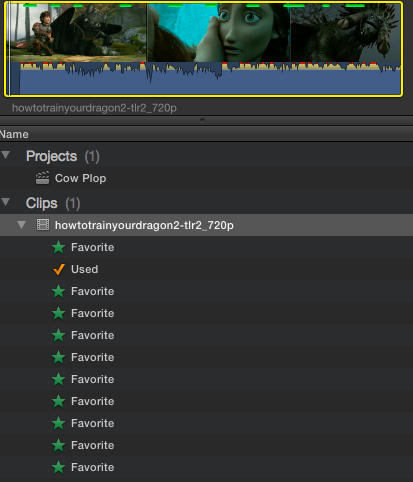
Just click on them...
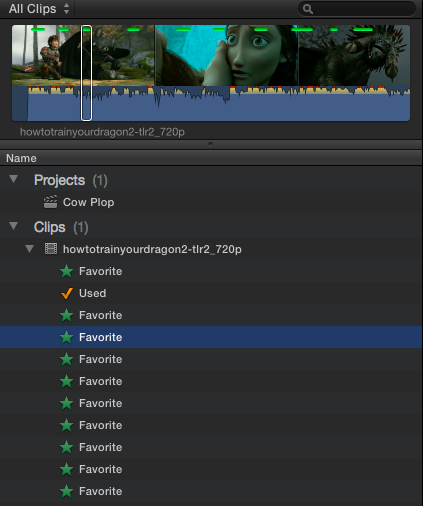
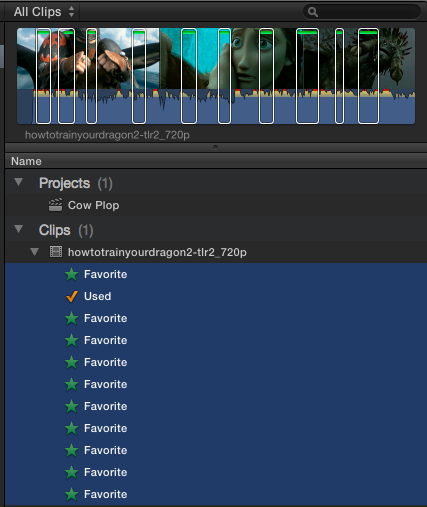
To address this concern... not true at all. All you need to do is select the favorite in list view to reveal it. See below:
all ranges deselected, but they are there...
Just click on them...
Can't sleep? Try this: fcpxpert.net ;-)
Please Log in to join the conversation.
13 Jun 2014 14:11 - 13 Jun 2014 14:15 #47780
by BenB
Replied by BenB on topic Subclipping in FCPX
First, all of your assumptions are, IMHO, wrong. Lynda.com has sucky instructional video, IMHO. Got to Ripple Training or macProVideo.com. Both are much better structured.
1: Absolutely not true. Nothing in FCPX is destructive, and keyword ranges can in fact overlap just fine.
2: Caution is required when using keywords:
No, Shift-Cmd-i does not delete keyword collections, at all. Removing “selected ranges” does not delete any collections at all. You can still see the colored indicator bars at the top of the clip. And in list view, you can still see all collections/keywords/ranges listed, click on them, and see that range “selected” again. Unselecting ranges does NOT in any way delete anything.
b) This is a duh! Think twice before deleting anything. If you want to change what that keyword is, just go to the Libraries pane, and simply rename the collection there, everything updates immediately to the correction.
c) Be careful not to mistype anything, like titles, too. But if you do, it is easy to correct. Just go to the Libraries pane, and simply rename the collection there, everything updates immediately to the correction. But, if you type just a couple of letters correctly doing a search, even misspelled things can be found quickly and easily in the Browser.
d) This would only make sense if you’re not being careful, not pre-planning, and not using a sensible media management scheme.
My comments: “…it is very easy to erase previous selections if you forget to press SHIFT COMMAND “i”."
Nope, that does not delete any collections.
“Keywords are a great tool and would be a great adjunct to the traditional way of making sub clips…”
Totally and strongly disagree. Works BETTER than traditional methods, and I’ve done some quit large projects. I think you’re working off of assumptions that are not true, and a lack of understanding of how the application functions. Some serous training from and Apple Authorized Training Center, Ripple Training, or macProVideo.com would help avoid a plethora of rookie mistakes.
Further questions: “Can you sort sub clips by parameters such as start position in the master clip?”
Absolutely! Select the keyword collation, then if it’s not already there, add the Browser heading you need (in List view), click on that heading to sort by that criteria.
1: Absolutely not true. Nothing in FCPX is destructive, and keyword ranges can in fact overlap just fine.
2: Caution is required when using keywords:
No, Shift-Cmd-i does not delete keyword collections, at all. Removing “selected ranges” does not delete any collections at all. You can still see the colored indicator bars at the top of the clip. And in list view, you can still see all collections/keywords/ranges listed, click on them, and see that range “selected” again. Unselecting ranges does NOT in any way delete anything.
b) This is a duh! Think twice before deleting anything. If you want to change what that keyword is, just go to the Libraries pane, and simply rename the collection there, everything updates immediately to the correction.
c) Be careful not to mistype anything, like titles, too. But if you do, it is easy to correct. Just go to the Libraries pane, and simply rename the collection there, everything updates immediately to the correction. But, if you type just a couple of letters correctly doing a search, even misspelled things can be found quickly and easily in the Browser.
d) This would only make sense if you’re not being careful, not pre-planning, and not using a sensible media management scheme.
My comments: “…it is very easy to erase previous selections if you forget to press SHIFT COMMAND “i”."
Nope, that does not delete any collections.
“Keywords are a great tool and would be a great adjunct to the traditional way of making sub clips…”
Totally and strongly disagree. Works BETTER than traditional methods, and I’ve done some quit large projects. I think you’re working off of assumptions that are not true, and a lack of understanding of how the application functions. Some serous training from and Apple Authorized Training Center, Ripple Training, or macProVideo.com would help avoid a plethora of rookie mistakes.
Further questions: “Can you sort sub clips by parameters such as start position in the master clip?”
Absolutely! Select the keyword collation, then if it’s not already there, add the Browser heading you need (in List view), click on that heading to sort by that criteria.
Last edit: 13 Jun 2014 14:15 by BenB.
Please Log in to join the conversation.
