


- Posts: 54
- Thank you received: 6
3 Post Moderation Rule for New Boarders (25 Jan 2021)
New boarders will have their posts moderated - Don't worry if you cannot see your post immediately.
Easy(?) Ken Burns question
02 Jan 2014 11:57 #37831
by ffg
Easy(?) Ken Burns question was created by ffg
If I want to use KB to put some movement into a static clip, so that I get a cut from long shot to close up then slowly pull back to long shot, is there an easy way to match the end frame so that it exactly matches the clip after it? Same would apply in reverse for a zoom in.
Sometimes I get it bang on, by using the yellow grid lines which pop up when moving the end frame of the KB sequence.. but often there's a little skip at the end of the KB section. Is there a way to tell FCP to align the end frame without juggling it around manually?
Sometimes I get it bang on, by using the yellow grid lines which pop up when moving the end frame of the KB sequence.. but often there's a little skip at the end of the KB section. Is there a way to tell FCP to align the end frame without juggling it around manually?
Please Log in to join the conversation.
- ronny courtens
-

- Offline
- Moderator
-

Less
More
- Posts: 4455
- Thank you received: 962
02 Jan 2014 15:02 - 02 Jan 2014 15:03 #37839
by ronny courtens
Replied by ronny courtens on topic Easy(?) Ken Burns question
Apply the KB effect to a clip, zooming in from wide to close
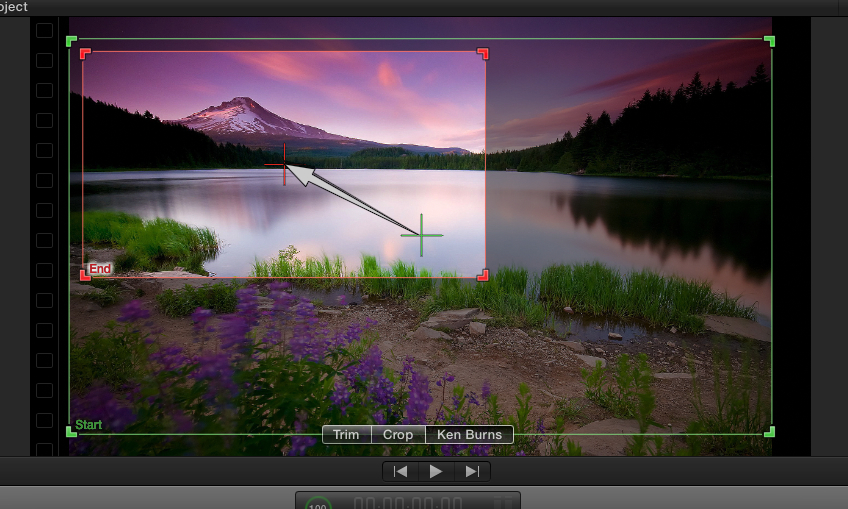
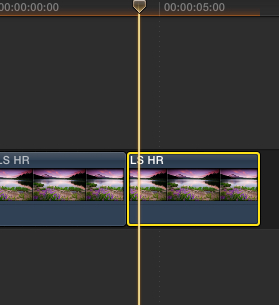
Copy the clip and paste the copy behind the original (or just ALT-drag the clip)
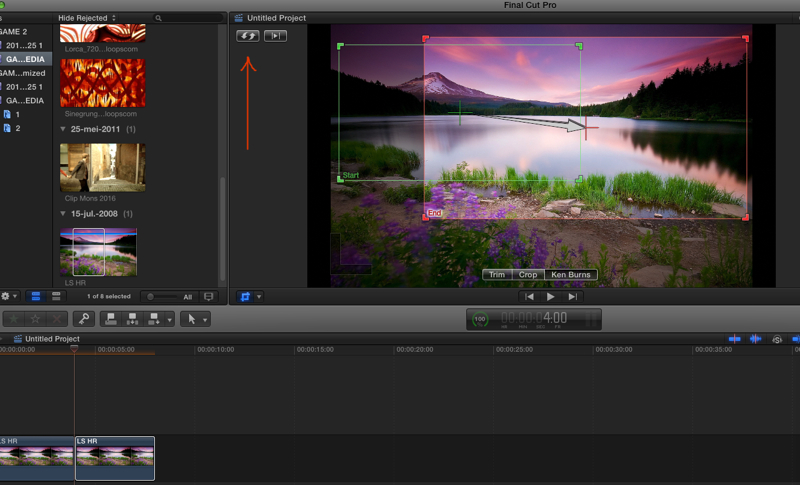
Select the copy, select Ken Burns and click the Swap button to exchange the start and end positions. Then drag the end position rectangle to a different end position if you wish and press Done. Play both clips, the image will zoom in then zoom out again to the new end position, and the end position of clip 1 will be perfectly aligned with the start position of clip 2.
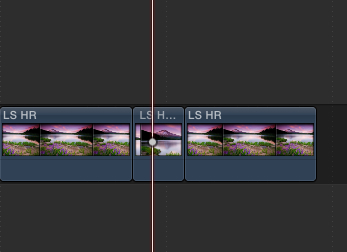
If you want a pauze between the two movements use the up or down arrow to place your playhead between the two clips, then press ALT+F to insert a freeze frame between the clips. Now the first animation will smoothly end in a freeze until the second animation starts.
- Ronny
Copy the clip and paste the copy behind the original (or just ALT-drag the clip)
Select the copy, select Ken Burns and click the Swap button to exchange the start and end positions. Then drag the end position rectangle to a different end position if you wish and press Done. Play both clips, the image will zoom in then zoom out again to the new end position, and the end position of clip 1 will be perfectly aligned with the start position of clip 2.
If you want a pauze between the two movements use the up or down arrow to place your playhead between the two clips, then press ALT+F to insert a freeze frame between the clips. Now the first animation will smoothly end in a freeze until the second animation starts.
- Ronny
Last edit: 02 Jan 2014 15:03 by ronny courtens.
Please Log in to join the conversation.
02 Jan 2014 17:07 #37851
by ffg
Replied by ffg on topic Easy(?) Ken Burns question
Many thanks, Ronny, very helpful, but not quite the move I meant. When I said a static clip, I didn't mean a still photo, but in fact a talking head. At a certain point I want to either zoom in or out of this otherwise one-shot clip. Let's say I cut the clip at a suitable point where I want to jump to closeup. I then cut it again a few seconds further on, where I want the zoom out to finish and rejoin to the original clip.
I apply KB to the new clip (i.e. from the jump to closeup to where it rejoins the long shot). I set up the Start and End cropping of the KB effect. The difficulty occurs where the KB effect clip rejoins the old clip - unless I have been careful/lucky to exactly scale the End of the KB to the existing clip, there's a slight jump at the edit.
Actually I found it's quite easy to apply a very short crossfade which effectively hides the jump, but it would be tidier to find a way to align the frames precisely.
I apply KB to the new clip (i.e. from the jump to closeup to where it rejoins the long shot). I set up the Start and End cropping of the KB effect. The difficulty occurs where the KB effect clip rejoins the old clip - unless I have been careful/lucky to exactly scale the End of the KB to the existing clip, there's a slight jump at the edit.
Actually I found it's quite easy to apply a very short crossfade which effectively hides the jump, but it would be tidier to find a way to align the frames precisely.
Please Log in to join the conversation.

02 Jan 2014 17:34 - 02 Jan 2014 17:39 #37856
by Jimmyfinn
Replied by Jimmyfinn on topic Easy(?) Ken Burns question
Forget KBs! Use Keyframes.
Blade {CMD+B} where you want to jump to Close up. Select transform. Reposition shot as desired. Add a Keyframe

Find the point where you would like to be back at original size and go into the inspector and set the position back to 0 and Scale to 100%. An new Keyframe is automatically added and a smooth 'Zoom out' is created.
Far more flexible and accurate.
Blade {CMD+B} where you want to jump to Close up. Select transform. Reposition shot as desired. Add a Keyframe
Find the point where you would like to be back at original size and go into the inspector and set the position back to 0 and Scale to 100%. An new Keyframe is automatically added and a smooth 'Zoom out' is created.
Far more flexible and accurate.
Last edit: 02 Jan 2014 17:39 by Jimmyfinn.
Please Log in to join the conversation.
- ronny courtens
-
- Offline
- Moderator
-
Less
More
- Posts: 4455
- Thank you received: 962
02 Jan 2014 18:03 #37862
by ronny courtens
Replied by ronny courtens on topic Easy(?) Ken Burns question
If that's what you want to achieve, I agree using keyframes will be much easier.
- Ronny
- Ronny
Please Log in to join the conversation.
