


- Posts: 929
- Thank you received: 131
3 Post Moderation Rule for New Boarders (25 Jan 2021)
New boarders will have their posts moderated - Don't worry if you cannot see your post immediately.
How To: Setting up a client monitor in FCP X
11 Oct 2011 00:00 - 11 Oct 2011 00:02 #1570
by tpayton
How To: Setting up a client monitor in FCP X was created by tpayton
Proper professional monitoring is coming to FCP X early 2012, but the thing I really miss is my Matrox MXO2 feeding a client monitor.
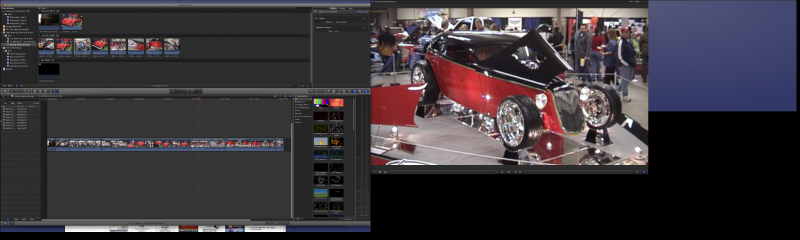
Fortunately there is a pretty good workaround, as long as you have a graphics card that supports 3 displays. Here is what the setup looks like:
- Display 1 - FCP X Interface
- Display 2 - FCP X Viewer
- Display 3 - mirrored version of FCP X Viewer
So you'll start by getting your 3 displays going, here is what my setup looks like before mirroring is turned on. (For this example my display 3 is an iPad running AirDisplay at 1024x768)
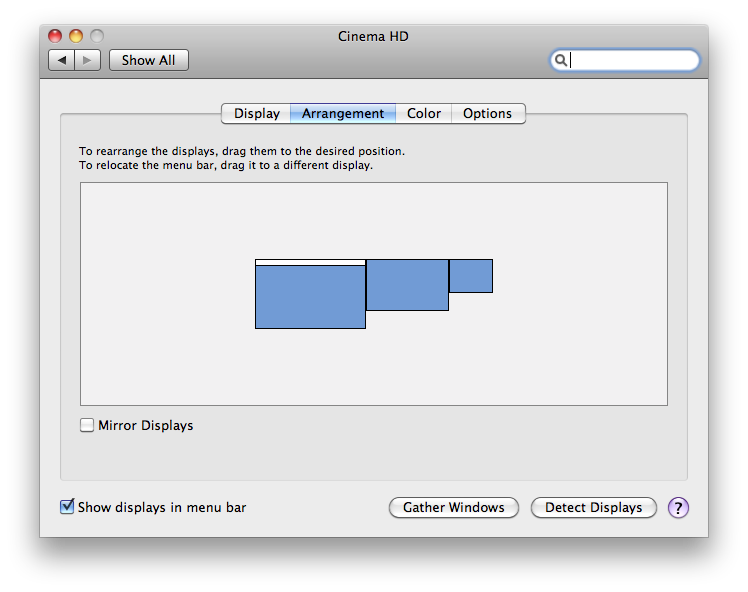
Then in Displays > Arrange you'll see this:
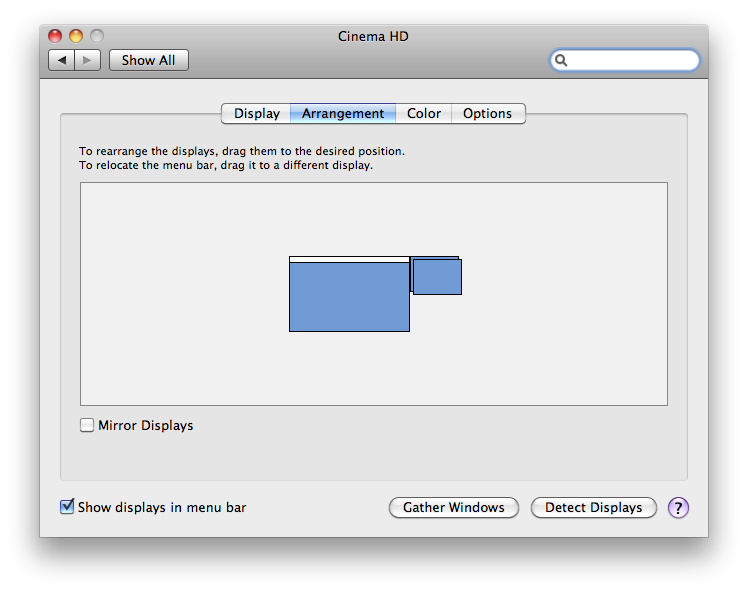
Now hold down option (or alt) and drag display 3 onto display 2. Now display 3 and 2 are mirrored. (cool eh?) See the red indicator for mirrored.
Here are a few things to think about:
- Display 2 and 3 will both be set to the same resolution so you want to have your viewer and your client display be the same resolution. Ideally 720p or 1080p displays.
- I have no idea the performance hit on the GPU for mirroring. I tried a bunch of real time effects with this setup and don't see any decreased performance.
- Unless you switch to full screen playback, you'll have the transport controls in your viewer. Might kinda bug the client. So as you work leave those up but when you do a real "playback" for the client, switch to full screen. But you won't be able to really edit in FCP X when in full screen. To get out of fullscreen hit escape.
Enjoy!
Fortunately there is a pretty good workaround, as long as you have a graphics card that supports 3 displays. Here is what the setup looks like:
- Display 1 - FCP X Interface
- Display 2 - FCP X Viewer
- Display 3 - mirrored version of FCP X Viewer
So you'll start by getting your 3 displays going, here is what my setup looks like before mirroring is turned on. (For this example my display 3 is an iPad running AirDisplay at 1024x768)
Then in Displays > Arrange you'll see this:
Now hold down option (or alt) and drag display 3 onto display 2. Now display 3 and 2 are mirrored. (cool eh?) See the red indicator for mirrored.
Here are a few things to think about:
- Display 2 and 3 will both be set to the same resolution so you want to have your viewer and your client display be the same resolution. Ideally 720p or 1080p displays.
- I have no idea the performance hit on the GPU for mirroring. I tried a bunch of real time effects with this setup and don't see any decreased performance.
- Unless you switch to full screen playback, you'll have the transport controls in your viewer. Might kinda bug the client. So as you work leave those up but when you do a real "playback" for the client, switch to full screen. But you won't be able to really edit in FCP X when in full screen. To get out of fullscreen hit escape.
Enjoy!
Last edit: 11 Oct 2011 00:02 by tpayton.
Please Log in to join the conversation.
17 Oct 2011 20:13 #1638
by tpayton
Replied by tpayton on topic Re: How To: Setting up a client monitor in FCP X
Just a quick update on this. I finally picked up a MiniDisplay Port to VGA cable this weekend and able to get the 3 monitors running on my MacPro (2006) with a Radeon 5770. The mirroring works great just as expected.
BTW. I'm using VGA cable because the HDMI died on my 42" LCD. DVI or HDMI would be a much better solution.
BTW. I'm using VGA cable because the HDMI died on my 42" LCD. DVI or HDMI would be a much better solution.
Please Log in to join the conversation.
